This post is part of the GenAI Series.
At the beginning of this year, I started learning about website tracking, specifically browser-side and server-side tracking using Google Tag Manager. My very first project was implementing both browser-side and server-side tracking on a Shopify store run by a friend of mine.
The purpose of that blog post was not only to document how I actually work, but also to use it when reaching out to potential clients who were struggling to understand why proper tracking matters and how better conversion data could ultimately help improve their advertising results.
But later, I realized there was a problem: most business owners would probably switch off after seeing such a lengthy and technical post.
So, what to do?
A couple of months ago, I was having a discussion with a colleague at my co-working space about how I could promote my service in a more visual format. My original idea was to create a video using comic-style clips showing me and my friend, who runs the Shopify store, discussing the tracking implementation.
My colleague suggested something different: why not turn it into a podcast?
The idea clicked with me instantly because I had already experimented with creating a podcast-style resume.
My colleague, who himself works in AI video editing, offered to create it for me. However, it was going to be quite costly because I would have to pay for the licenses of the AI tools as well as his production charges.
So I decided to explore doing it myself.
That’s when I started learning Google Flow(Thanks to Saad for this awesome course, which helped make this possible)
After quite a bit of experimentation, prompting, failed generations, editing, and learning along the way, I eventually managed to create the podcast myself.
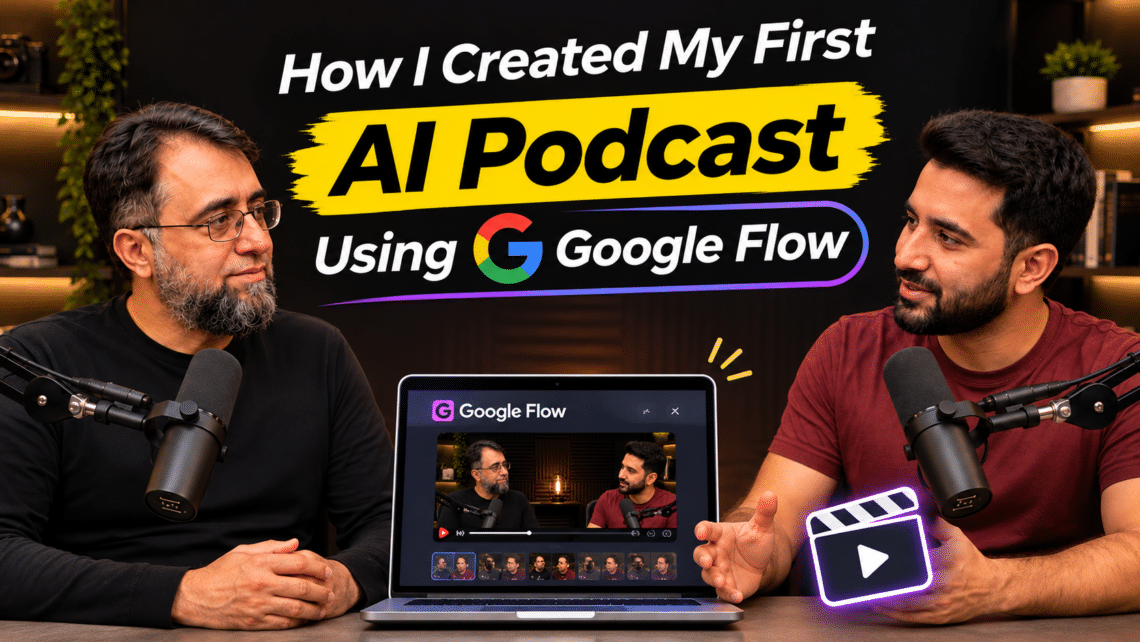
And here’s the interesting part: the host, the guest, their voices, the podcast studio, and the conversation you are about to watch were all created using AI.
If you’re interested in seeing the final outcome before I explain how I built it, check out the video below.
Planning the AI Podcast
So, the very first thing I did was divide the entire podcast generation project into smaller tasks: writing the script and dialogues, generating AI avatars of myself and the host, creating the podcast studio environment, and preparing prompt templates that would eventually be used to generate the videos in Google Flow.
I already had the blog post as a baseline for what needed to be discussed, but it contained a lot of technical details that might not be interesting to podcast listeners. After all, the goal wasn’t simply to convert a blog post into a video word for word. I wanted to produce something that actually felt like a natural podcast conversation, with questions and answers, a bit of humor, and a natural exchange between the host and the guest.
So instead of treating the original article as a script, I used it as the source material.
The host, whom I later named Adil, would ask the kinds of questions a business owner might ask about tracking: What exactly is server-side tracking? Why isn’t browser tracking enough anymore? How does it help Meta Ads? And is all this technical work actually worth doing?
My role as the guest was to answer those questions using what I had learned from my own tracking implementations.
This gave me the basic structure of the podcast. The next step was turning that structure into an actual host-and-guest script that could later be broken down into individual AI-generated video clips.
Script Preparation
The main idea about what to be discussed was already in form of a blog post, what actually was needed to convert into form of dialogues.
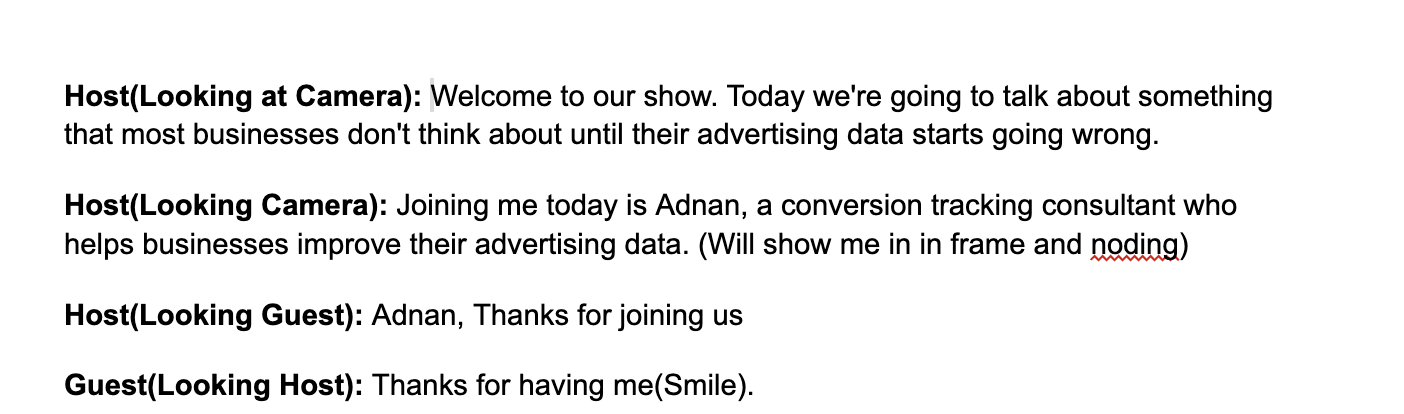
So, I created a script file in this format where I mentioned what would be said by the guest and the host. These dialogues were then fed into the relevant templates to generate the final prompts that would generate the videos.
I also mentioned the prompt type w.r.t the camera angle so that I wouldn’t have any difficulty figuring out which prompt to use. For instance, the text Looking at Camera gives me an instant hint that I need to put this dialogue into the prompt where the host is looking at the camera.
Generating studio environment
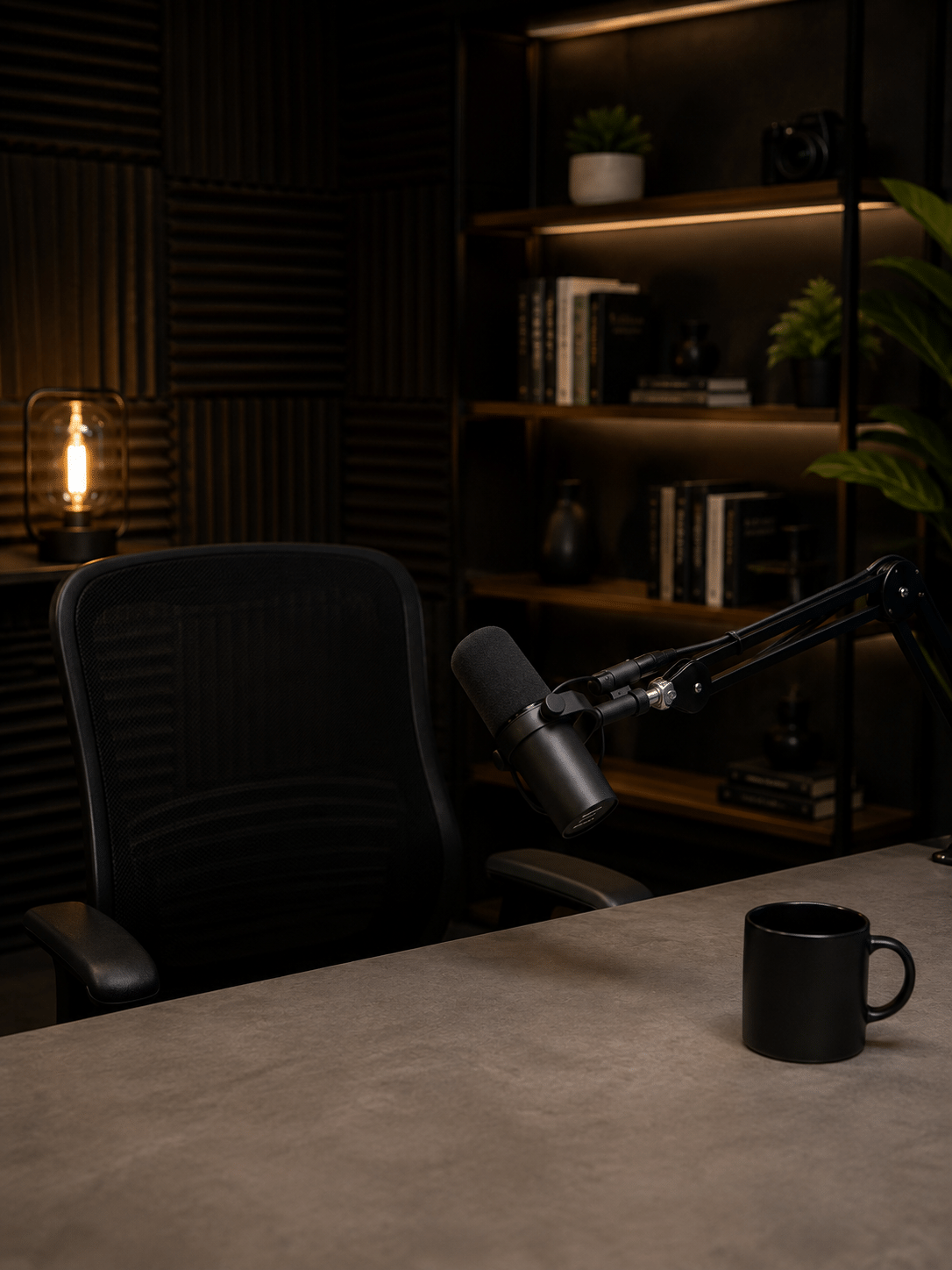
The next goal was generating the studio environment. I wanted something like Lex Friedman’s studio environment. After some hit and trial I managed to produce the following:
Avatar Generation
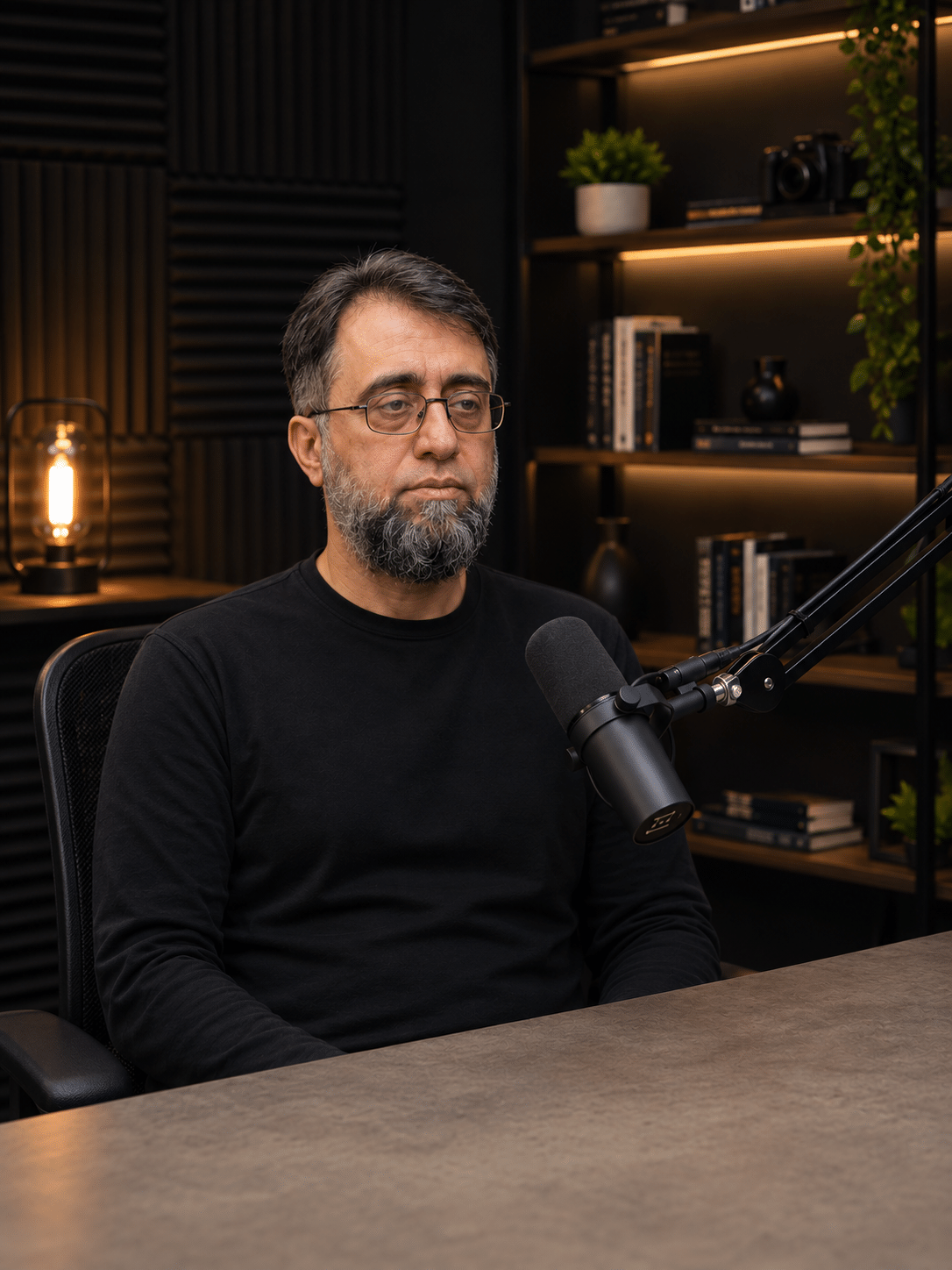
The next task was generating the avatars/characters: the guest and the host. I had already generated mine separately using an existing photo.
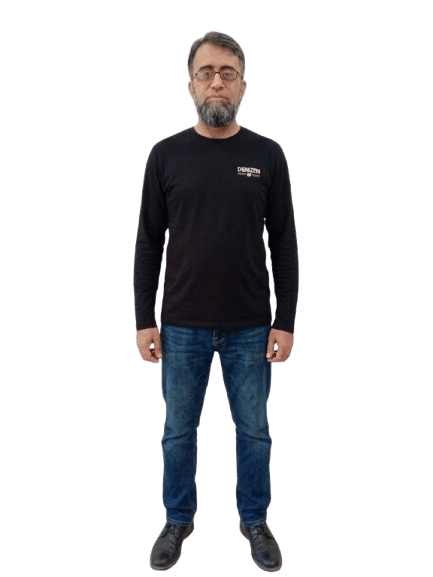
Then I fed this avatar and the studio environment to GPT:
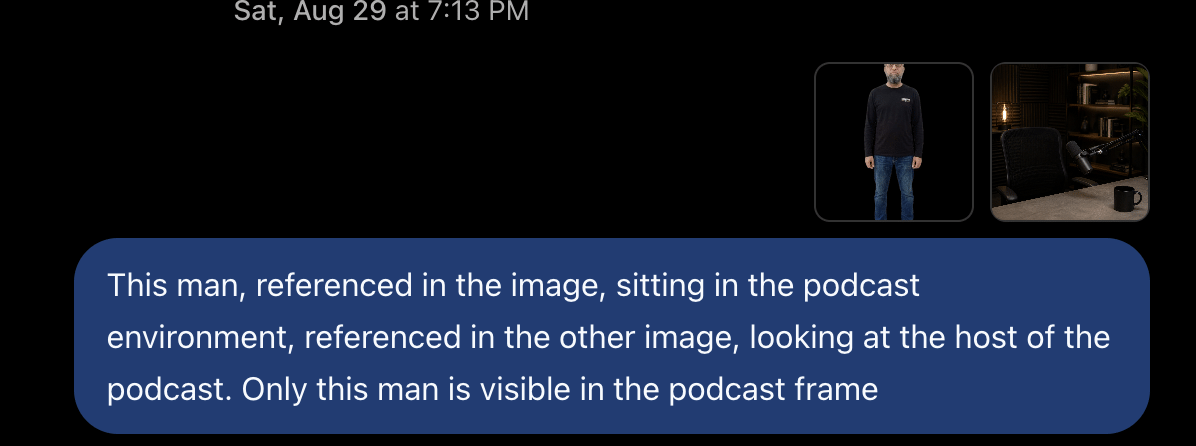
Which produced:
The next task was generating the character. I did not need any image reference, so I used the following prompt:
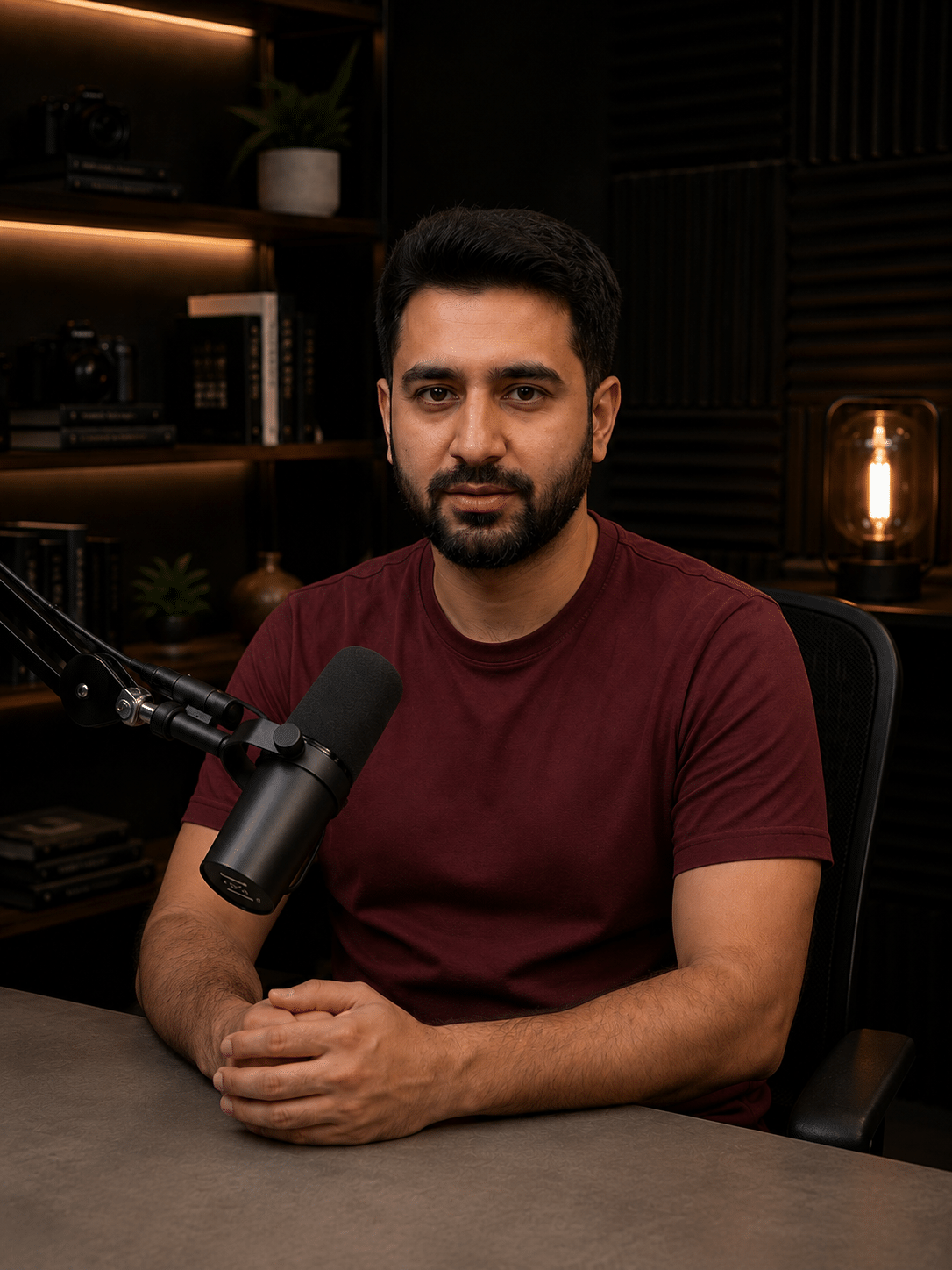
Using the same studio image of podcast environment, generate an image of the host, sitting on the other side of the table, looking at the guest of the podcast, the host is a man in 30s having a trimmed beard, wearing reddish half sleeves T-shirt
and it produced:
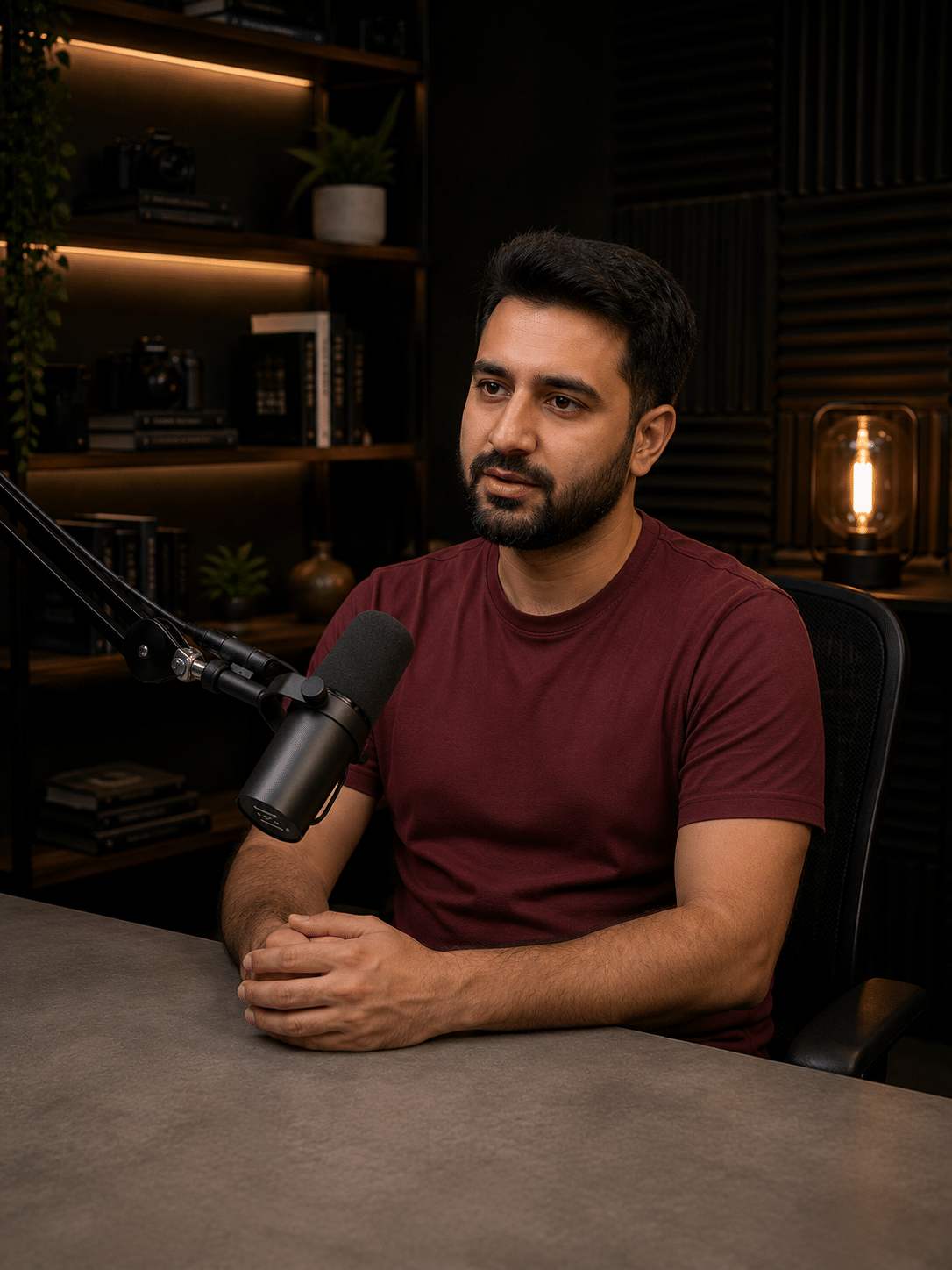
Using the above image as reference I produced another image in which the host is looking towards camera
Use the reference image, generate his image looking towards camera, will be using it for instance I want to look towards camera
Voice Generation
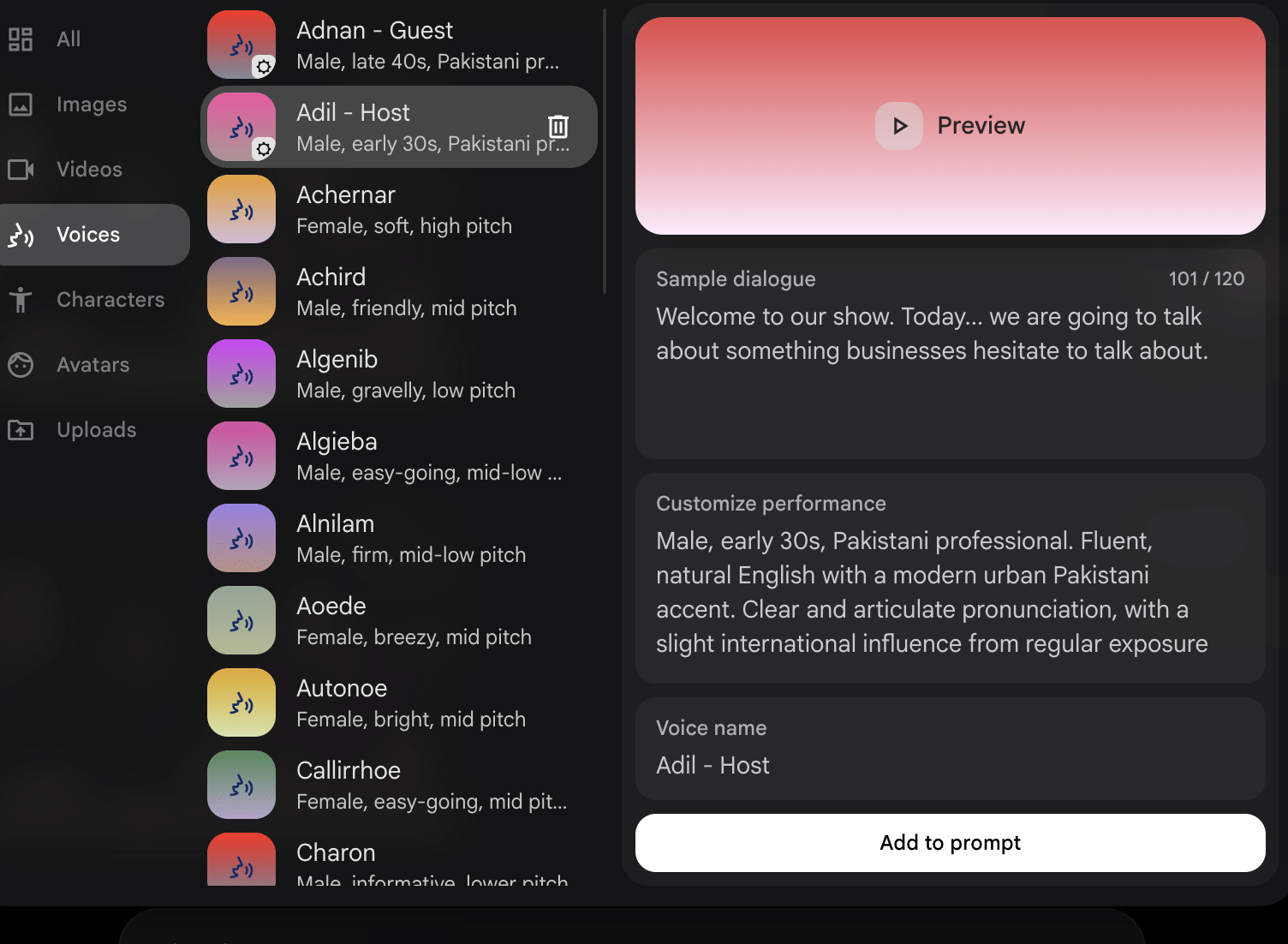
The next task was, giving a voice to these soulless and give them a soul. I picked an existing voice and modified it. First, for the host, Adil:
and then for the guest
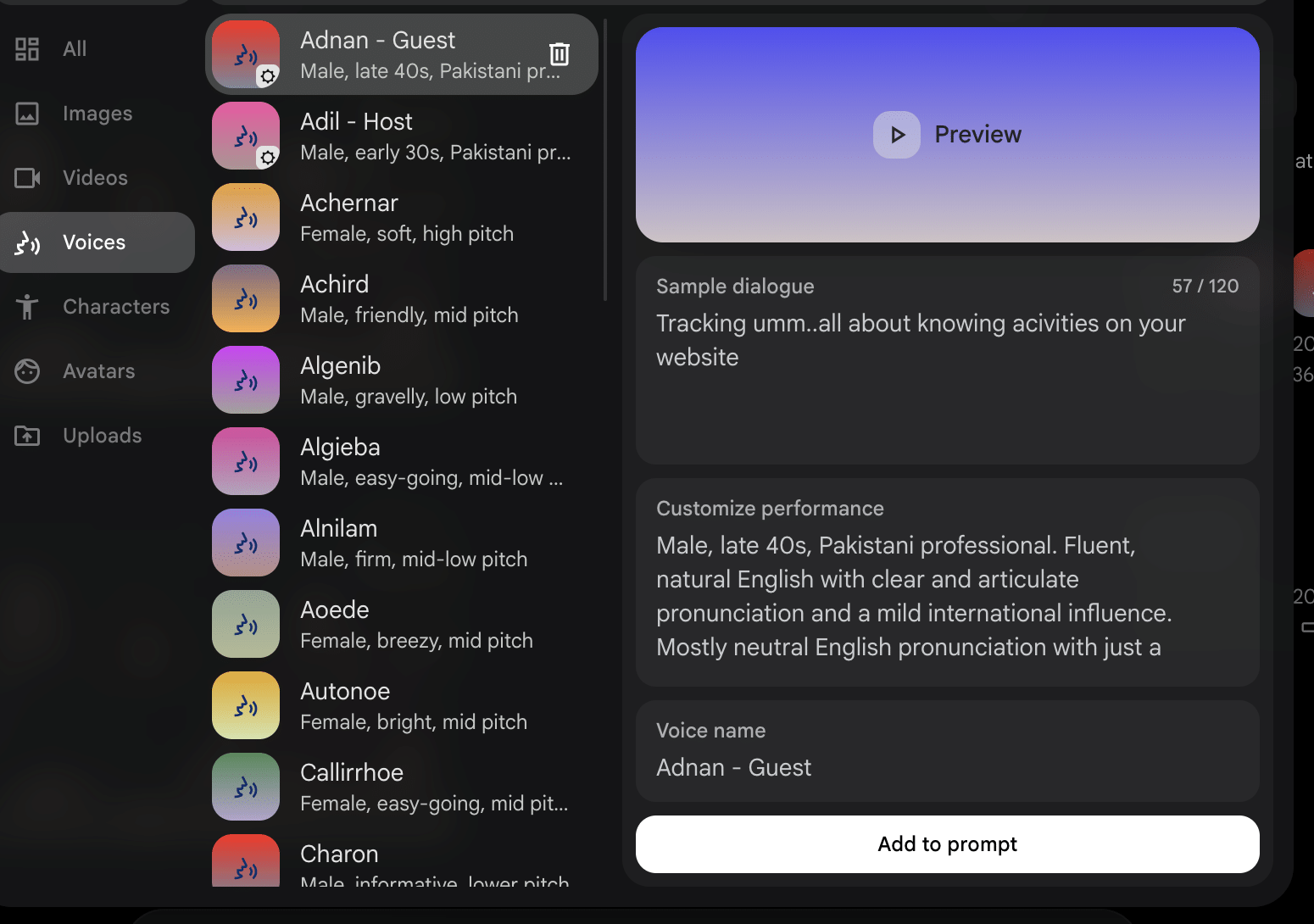
Google Flow’s integrated video generation environment made things quite easier. Also, as you can see, I gave meaningful names to the voices so that they could be easily referred to during video generation.
Prompt Generation
The next job was crucial because the entire video generation was relying on it; creation of prompts. I created multiple prompt templates for both host and guests based on camera angle.
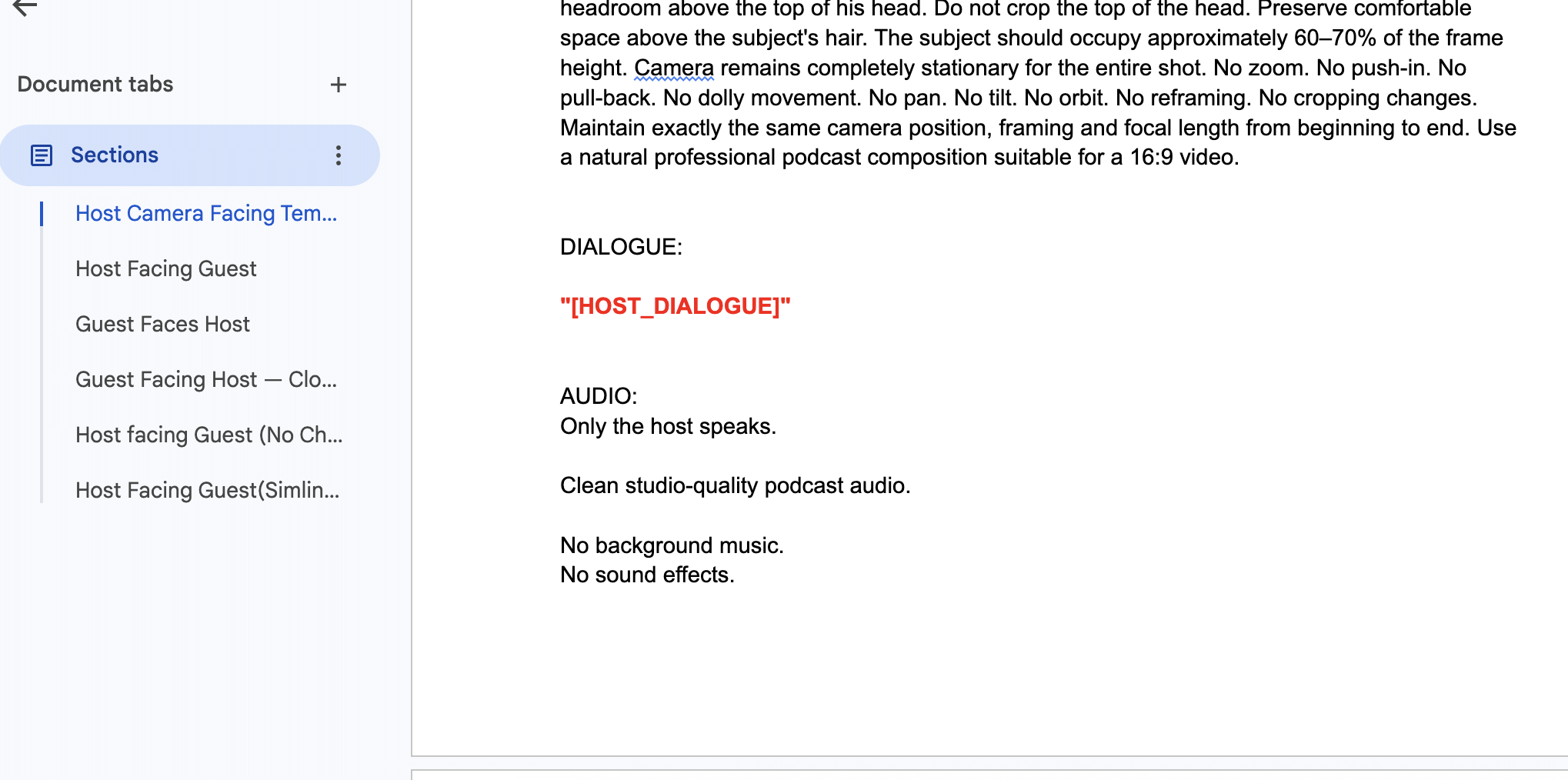
Remember I mentioned camera angles in the script document? This is what I was referring to. I knew which prompt template to use for a certain clip, and then I simply put the dialogue into its placeholder.
Video Generation
Alright! The moment we had been waiting for had finally arrived. It was time to load Google Flow and generate our first video. Google Flow’s integrated environment makes it easier to generate both images and videos.
The very first clip was the opener, in which the host greets the viewers.
Host(Looking at Camera): Welcome to our show. Today we’re going to talk about something that most businesses don’t think about until their advertising data starts going wrong.
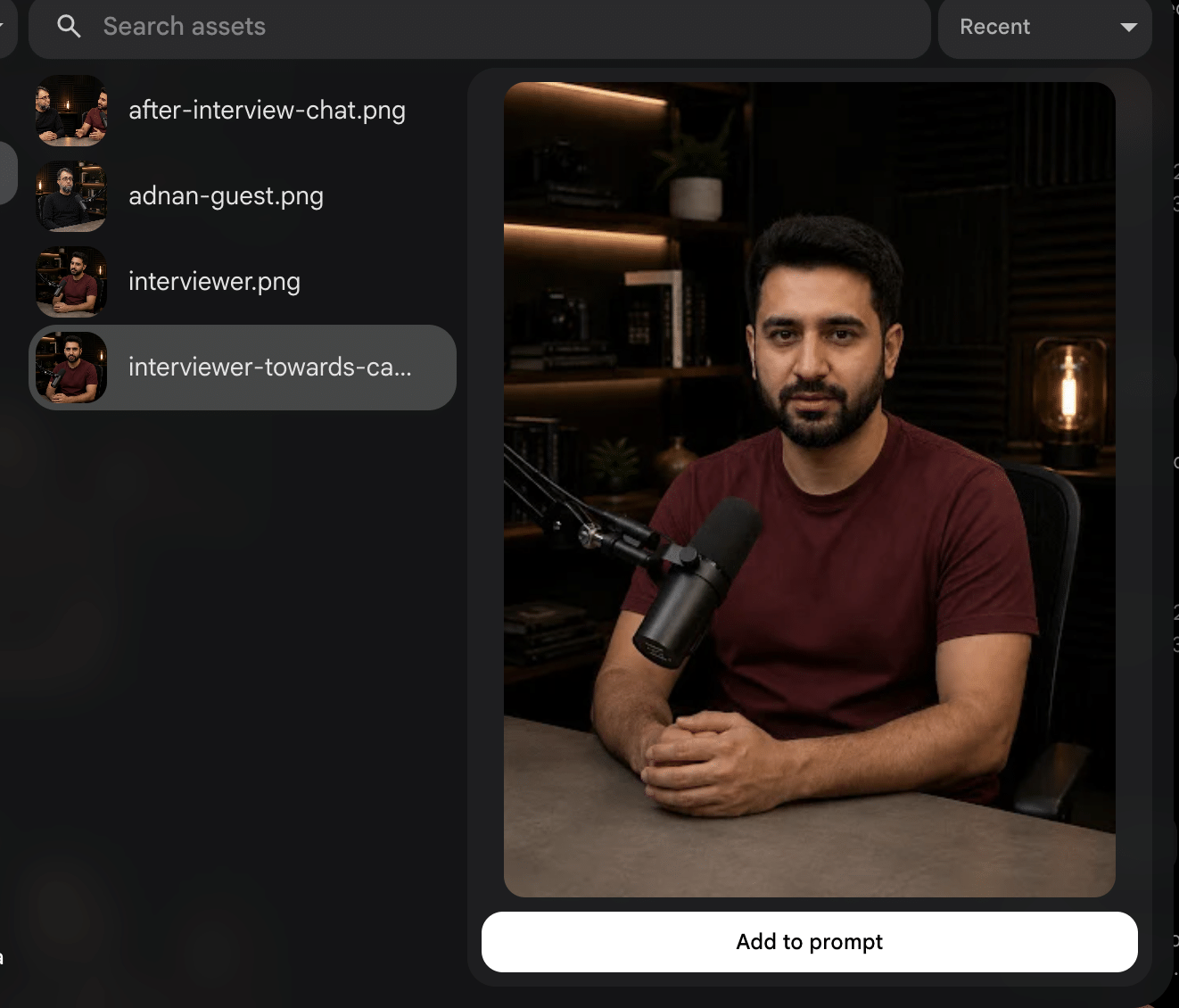
For this particular clip we are going to use Host Camera Facing template.
First, select the relevant host image:
then voice selection: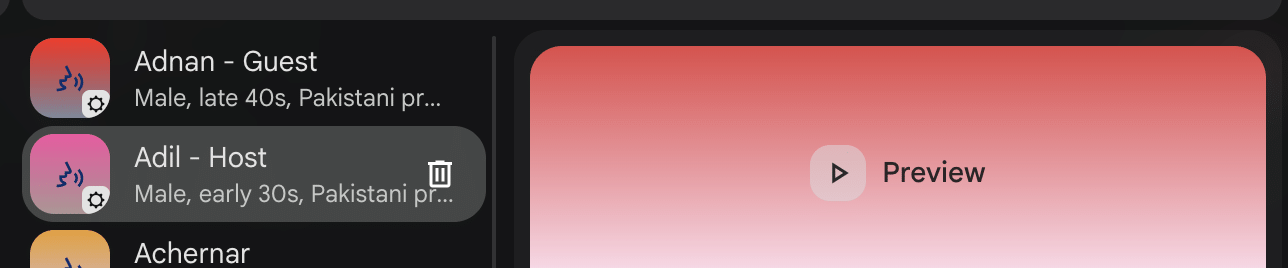
After selecting both and writing our prompt using the template, it’d look like this:
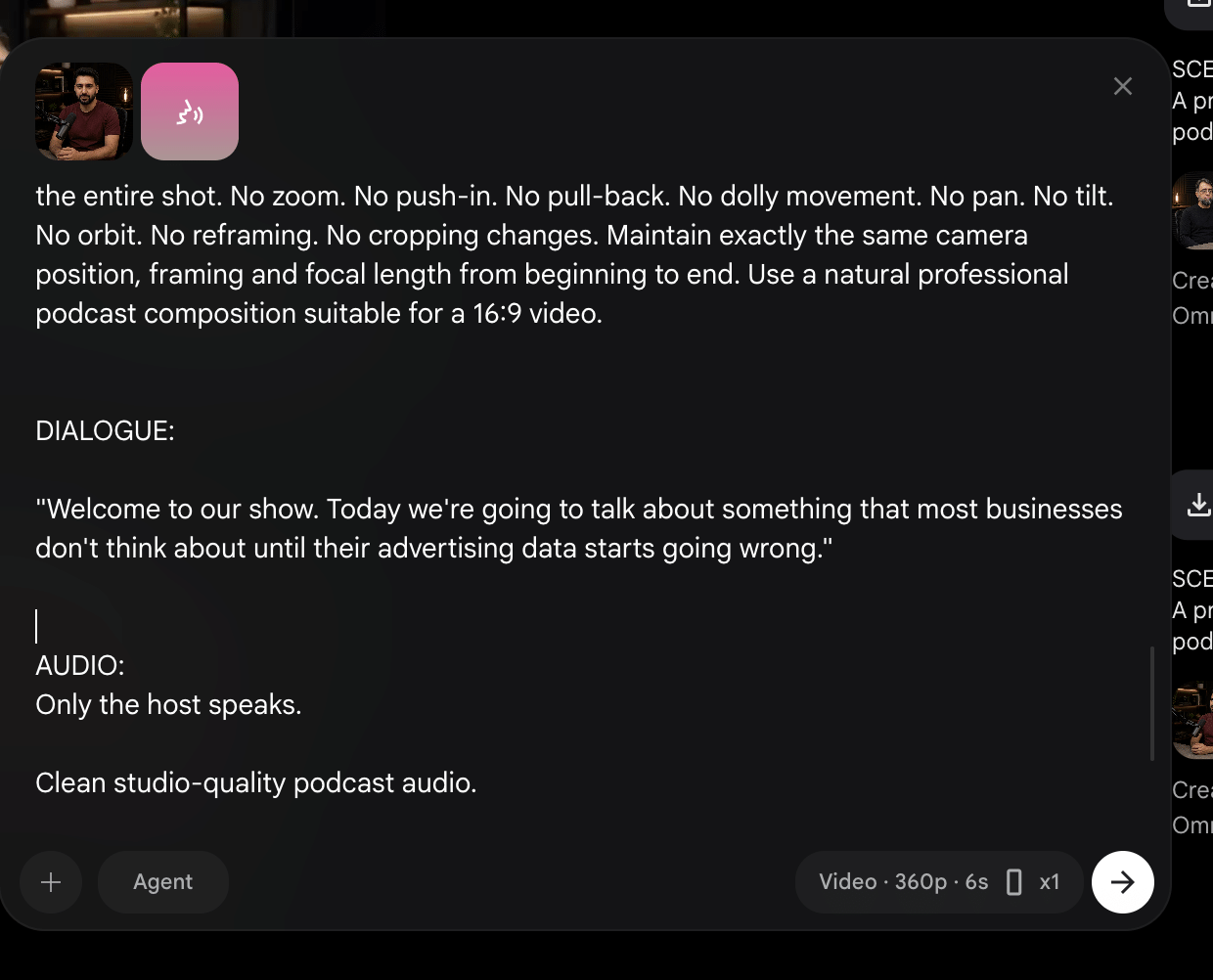
Before we do anything, we have to set the video generation parameters. Flow provides different options for generating both images and videos. You can select whether you want to generate a video or an image, its resolution, and the LLM model (I used Omni Flash 1.1).
When you select the Ingredients option, Flow generates the video based on the resources you provide and uses them to infer the output. You select the Frames option when you want a more deterministic outcome. You can set the start frame, or both the start and end frames, and Flow uses your selection as a reference for video generation.
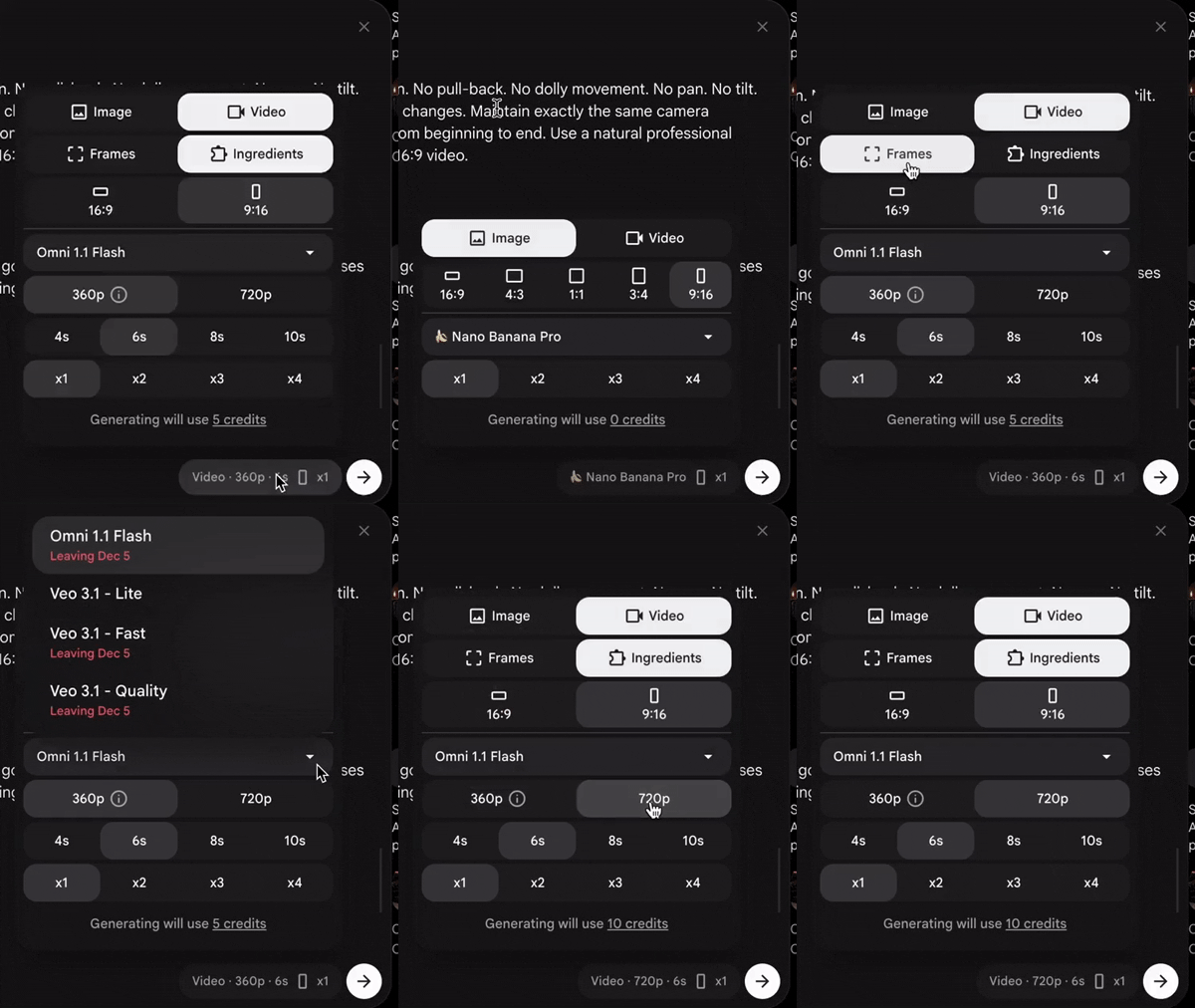
Let me be honest: I am on the free plan of Google Flow. When you first sign up, Google gives you both AI Credits and Google Flow credits for free. Once your AI Credits are consumed, they are not renewed unless you pay Google. Google Flow credits, on the other hand, are refreshed every day, and you get 50 free credits daily.
As you can see, as a free user, you can create videos at up to 720p resolution. The consumption of credits is based on the duration of the clip you are generating. Initially, I used the 720p option, but later I found an amazing free tool called Upscaler that could upscale the resolution. Hence, I was able to save my limited credits.
I took the help of GPT to figure out the duration of each clip, but quite often it did not produce an accurate result. So, if I felt that a certain dialogue would take a bit more time, I picked the higher duration option. For instance, if GPT suggested 6 seconds, I opted for 8 seconds.
The reason is that when you don’t give the model enough time to complete the dialogue, it can distort or hallucinate the outcome. Since I was already generating videos at 360p, which was saving 50% of my credits, I preferred opting for a longer duration.
So, it took a while before Google Flow generated our very first greeting clip. At the top left, you can see the label of the clip, scene-1. This naming convention helped me stitch all the clips together later in CapCut.
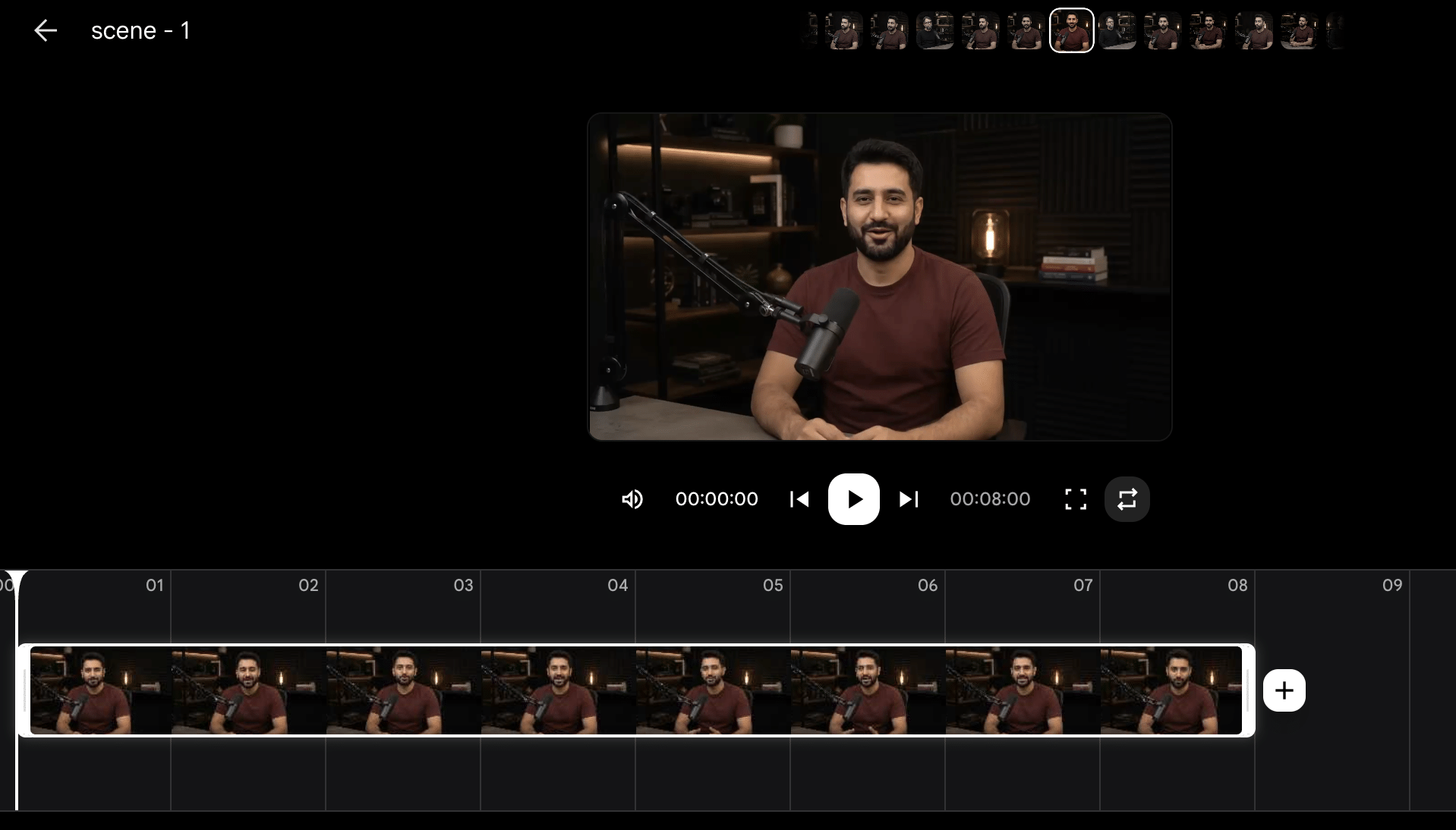
It took me more than a week to complete the final video, mainly because of the limited number of free credits available each day. In total, I generated more than 90 clips, amounting to roughly 10 minutes of footage. After removing unnecessary pauses, failed portions, and other unwanted parts during the final editing, the finished podcast was around 8 minutes long.
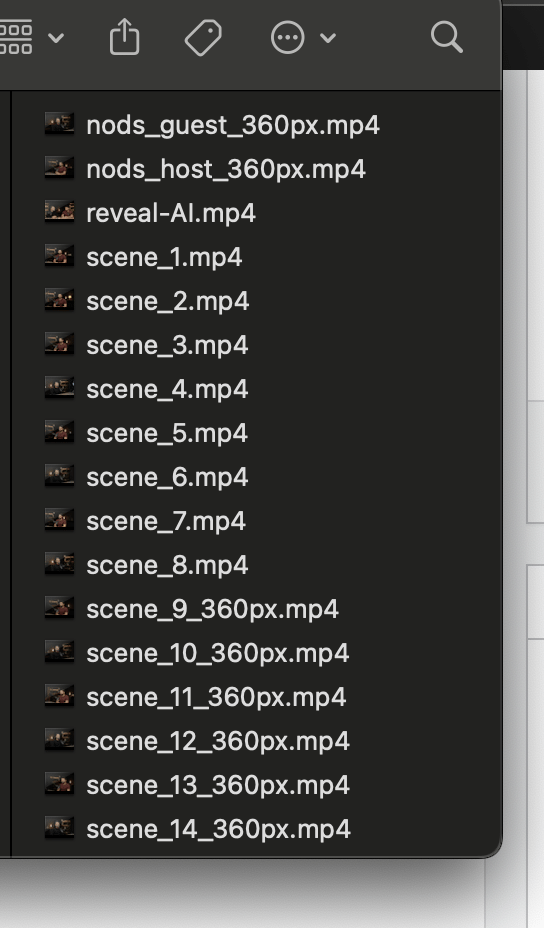
Finally, in CapCut, I removed the silent parts, added visual and sound effects, and stitched all the clips together before uploading the final video to YouTube.
Conclusion
Turning your existing business content or knowledge base into a podcast is not a new concept. Many consultants, coaches, and businesses have already been doing this, but they typically hire podcast production services involving real hosts and guests, which can cost anywhere from $600 to $2,500 per episode.
Now that AI is available, the cost of producing an episode can be reduced dramatically. An AI-generated podcast could cost around $150 to $400 per episode, depending on whether you hire an agency or an individual creator.
If you’re interested in creating something similar, or even better, I offer an AI podcast generation service for businesses and professionals, available in English, Hindi, and other languages.