This post is part of Web Tracking Series
Earlier I shared how I implemented both browser and server side tracking on a Shopify store using GTM and direct CAPI implementation via a Custom Pixel. This time we are going to see how one can implement browser and server tracking on an OpenCart store. Read on!
So, someone approached me to take care web tracking on their OpenCart store. I was like, why not!
I had never worked with OpenCart before. Most of my ecommerce tracking work has been with Shopify or WooCommerce. I thought it would be an easy task: find a free plugin, install it, configure GTM, and move on.
To my surprise, there are very few OpenCart extensions (the OpenCart version of plugins) for this. Secondly, pretty much everything I found was paid. The minimum was around $30, with some going close to $100.
Initially, I thought of simply buying one. But there were no trial versions, and I wasn’t even sure whether they’d give me the flexibility I wanted.
Then the developer in me whispered:
“Hey, why don’t you make one?”
Hmm… not a bad idea.
Especially because I wanted control over exactly how the tracking data was generated.
So I started exploring the OpenCart documentation and, with the help of docs + AI, started building my own extension.
Instead of relying on DOM scraping or modifying the theme, the extension hooks into OpenCart’s built-in event architecture and generates the tracking data itself
Implementation
Extension Development and Browser Side Tracking
We used OpenCart’s event hooks to run our custom PHP controller at key points in the storefront and checkout. For purchases, the controller pulled the order details, products, and totals from OpenCart, stored them in the session, and injected a dataLayer.push() call just before </body> on the order confirmation page. Below is the interface of the extension I made.

Below is the screenshot of the fired events in the GTM interface.

Meta Pixel viewer extension shows fired events

And Meta’s event manager was also recording events

Server side implementation via Stape and Cloudflare workers
Unlike previous post in which we directly called CAPI APIs, we are going to rely on Stape. Stape is a server side tagging platform that helps us to create and manage server containers. When you signup you see an interface like below to create your first container:
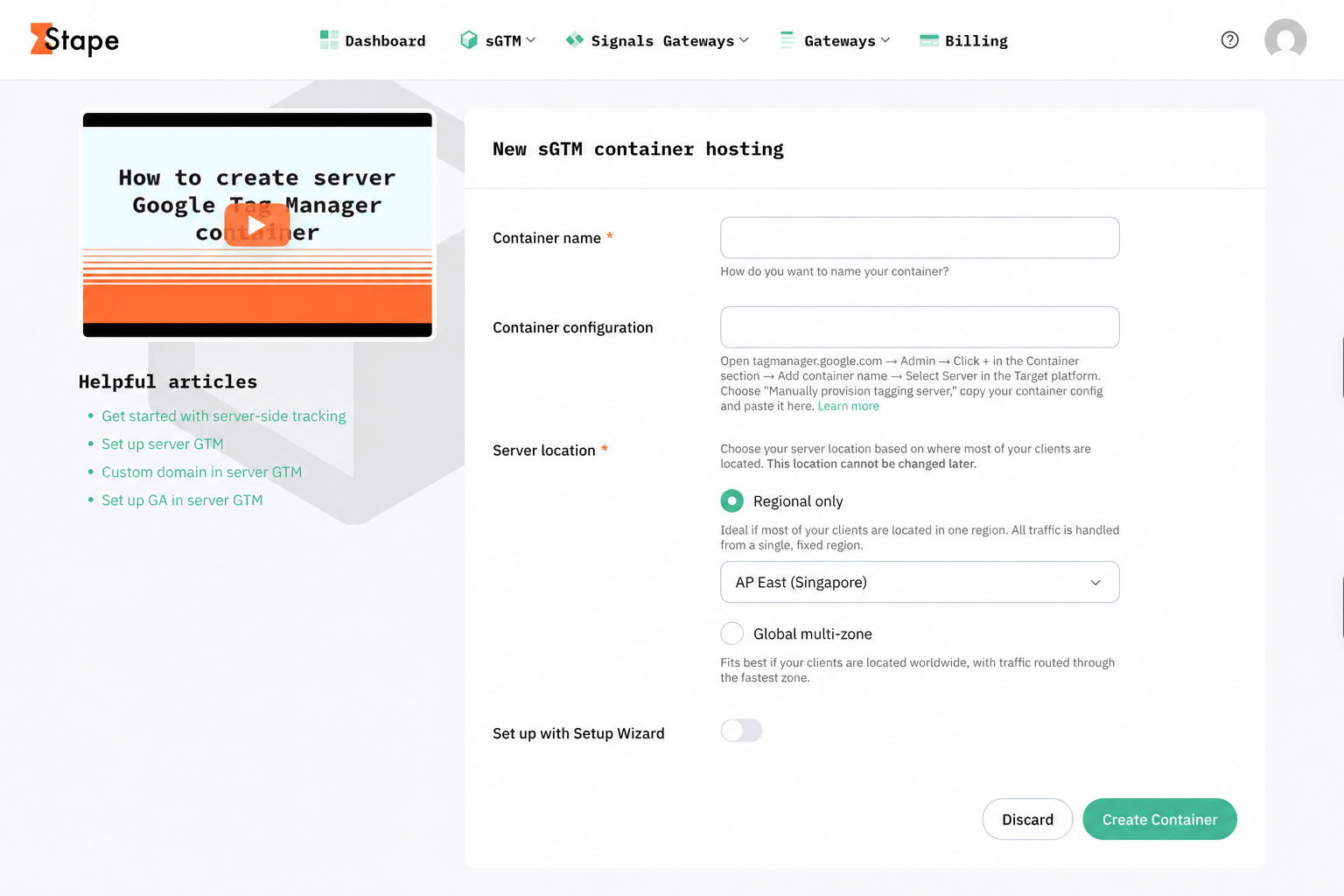
You select the location that is nearest to your visitors.
Next, once the sGTM running you will see something like below:
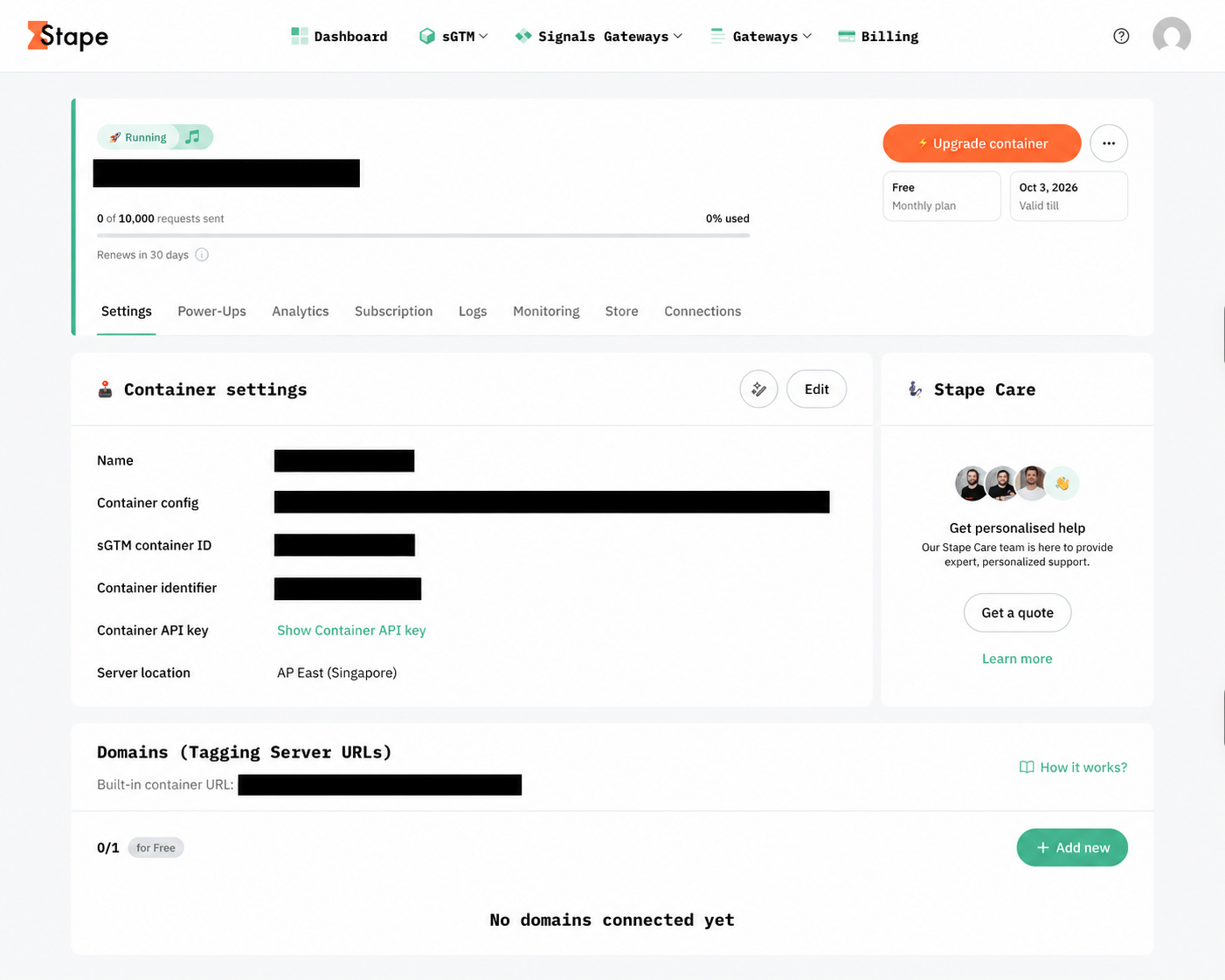
It will generate a tagging server URL like http://xxx.apd.stape.io/ for you that you could use for testing purpose.
Next, we will be using this URL in the server container within GTM so that it can serve tags from the custom domain instead of GTM’s
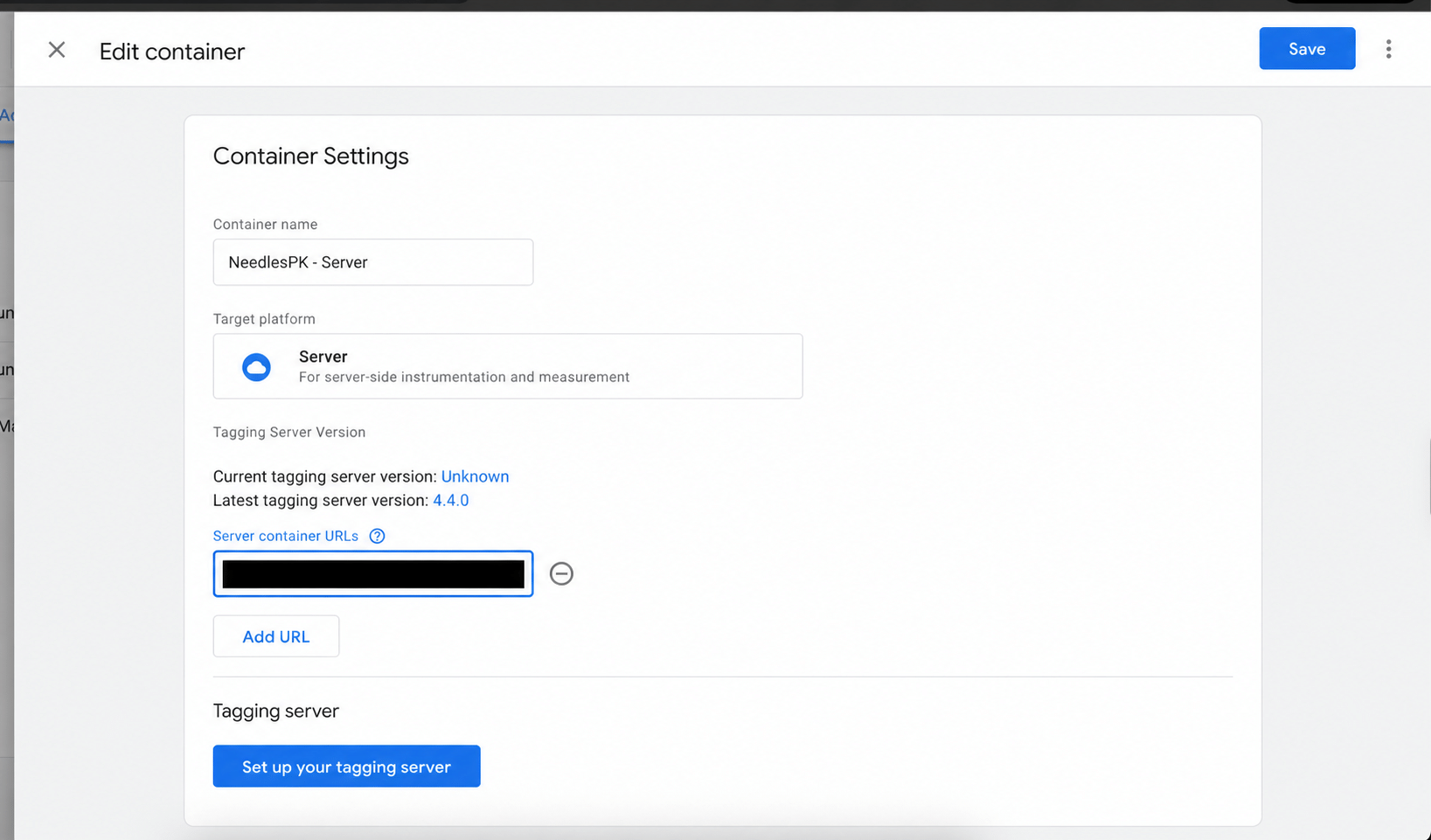
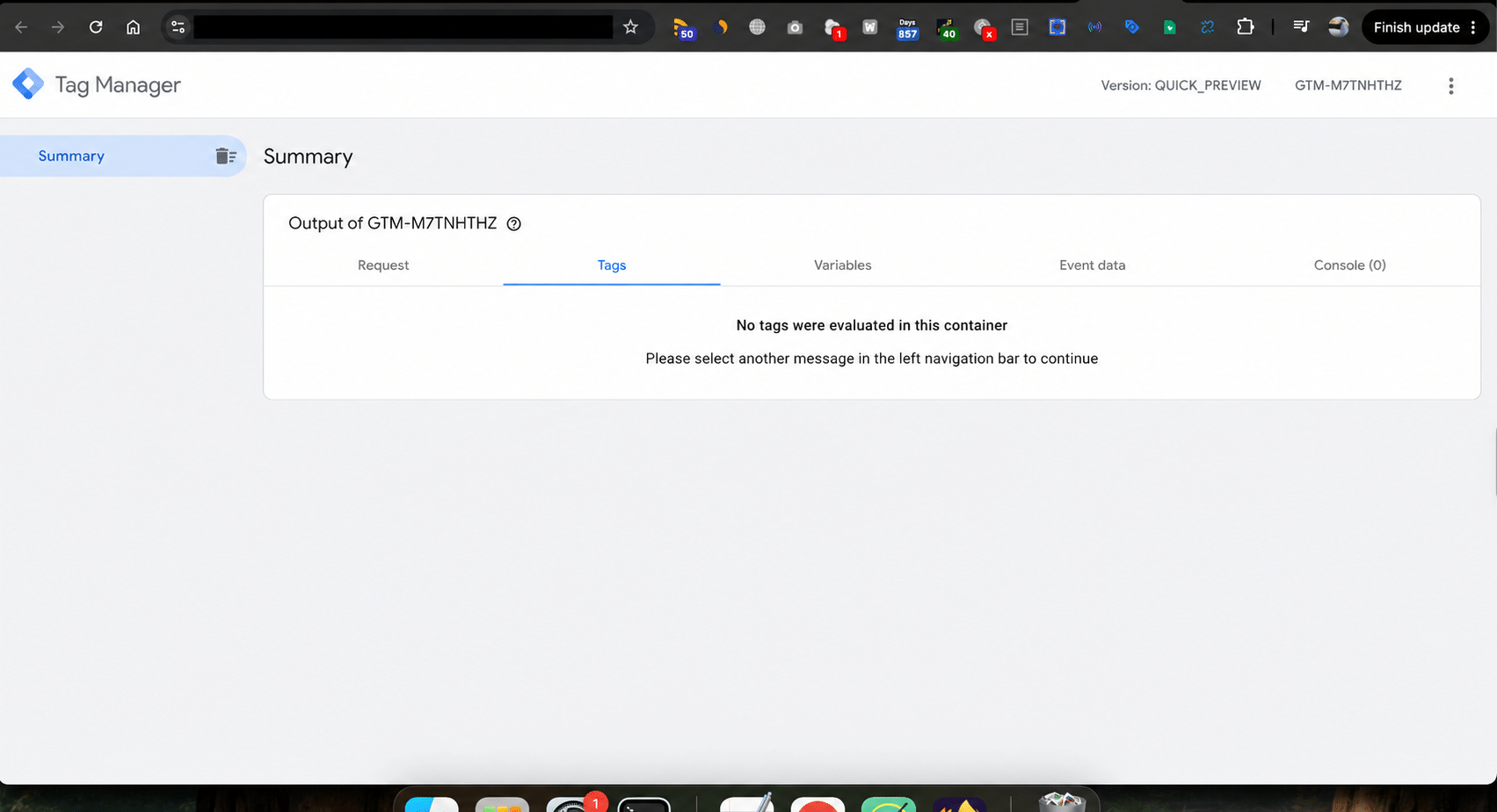
Now, let’s test it:
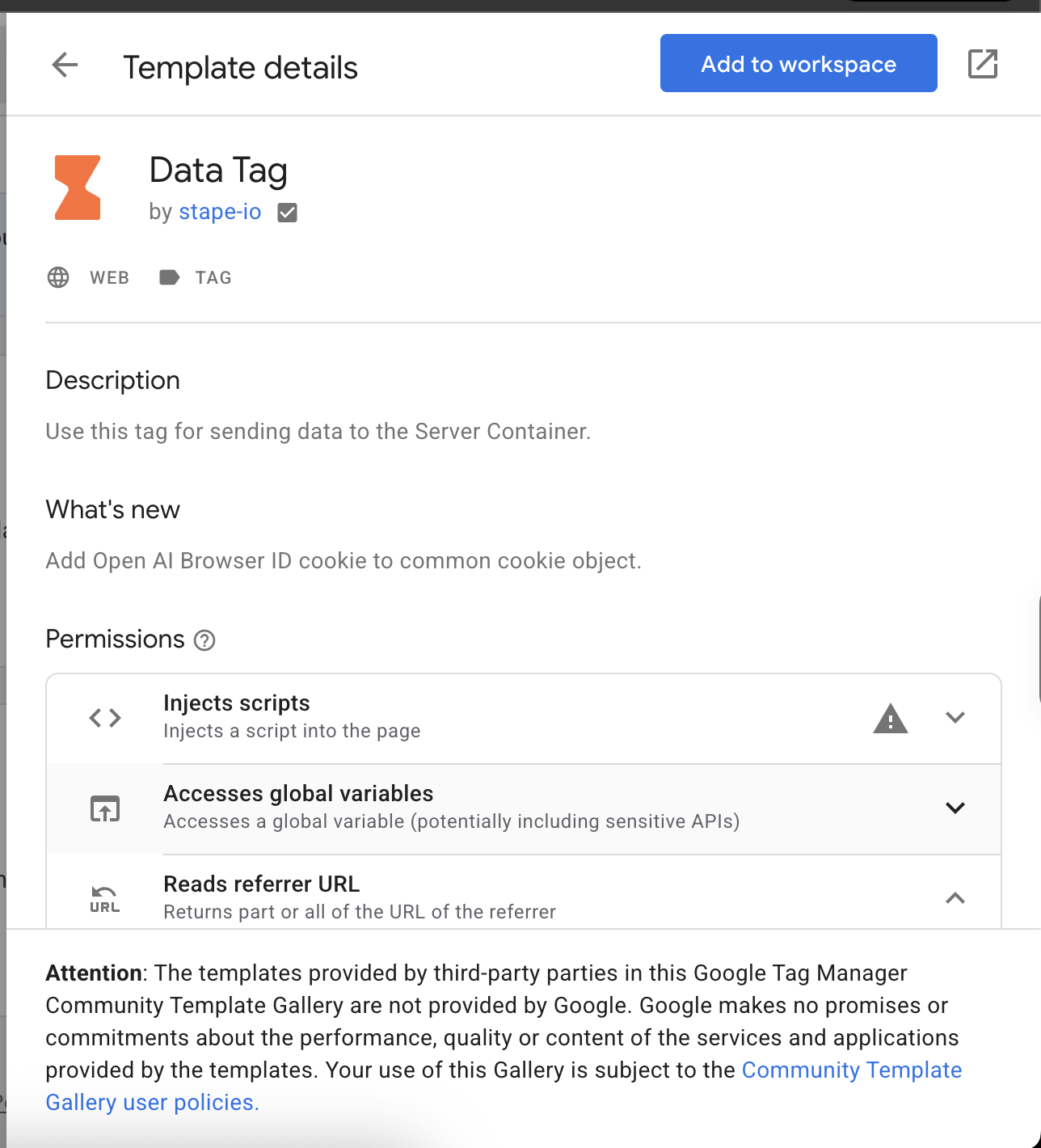
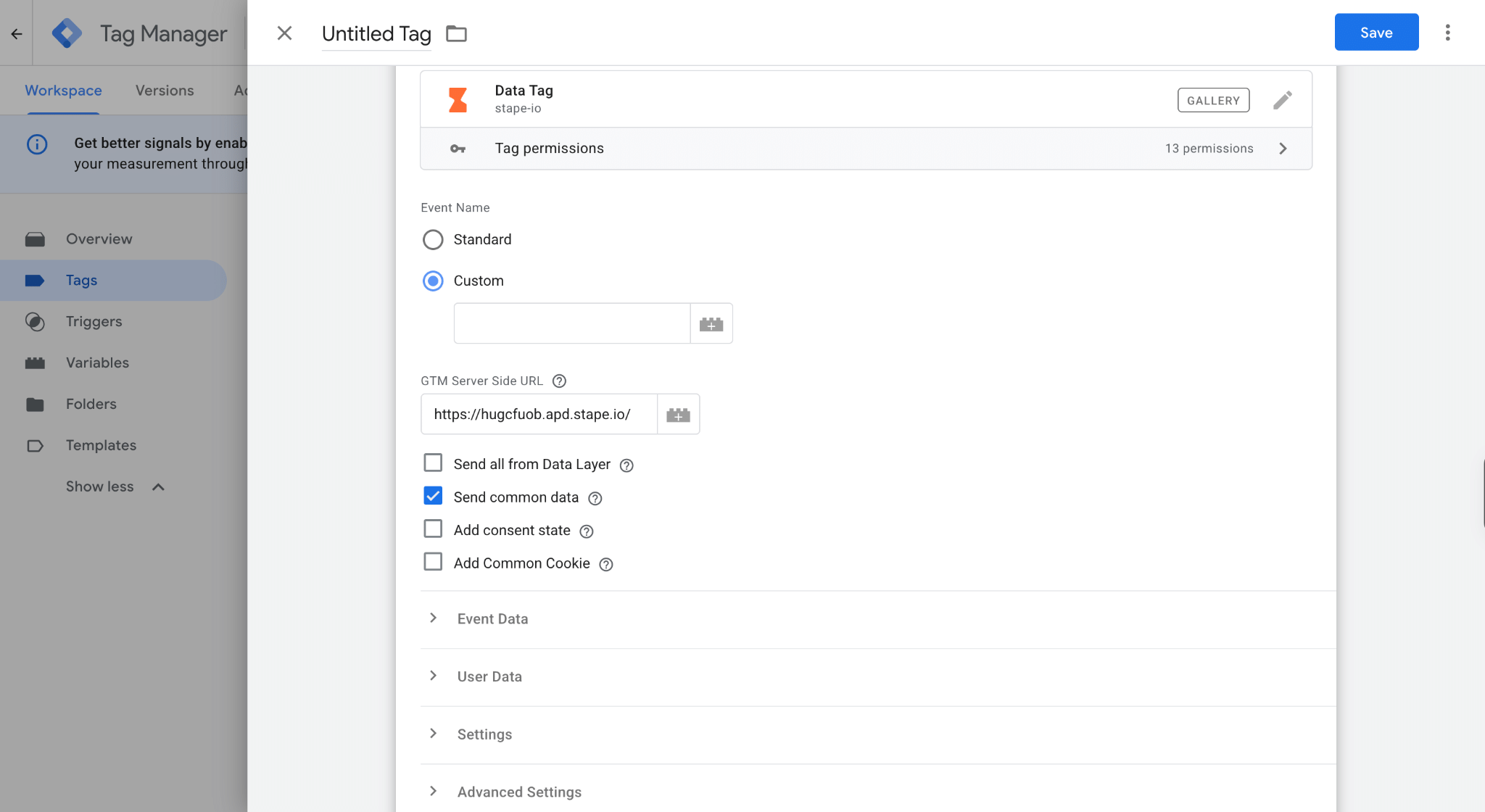
Next, I am gonna Add Data Tag template by Stape in webGTM
Set the server container URL and save tag:
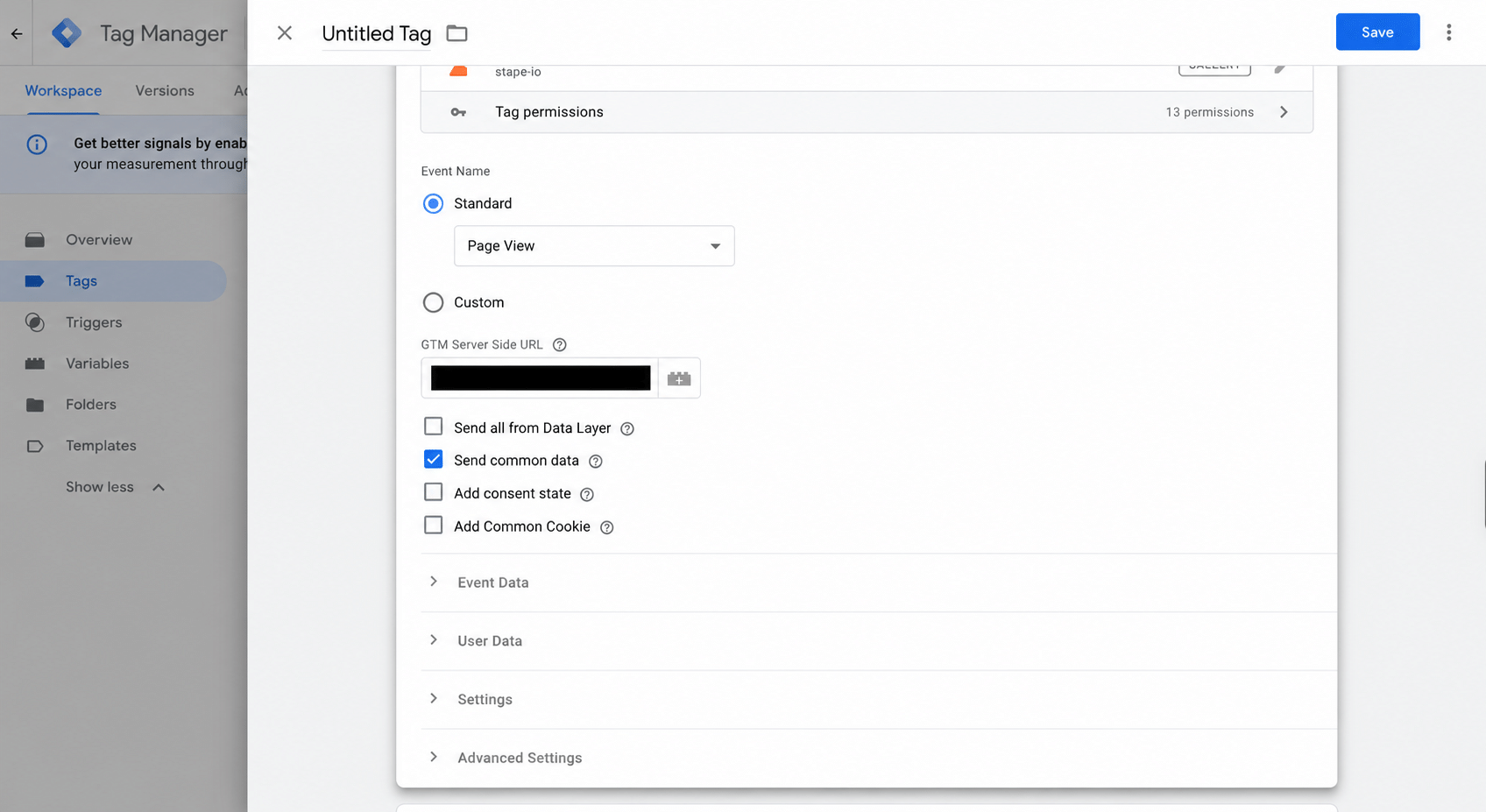
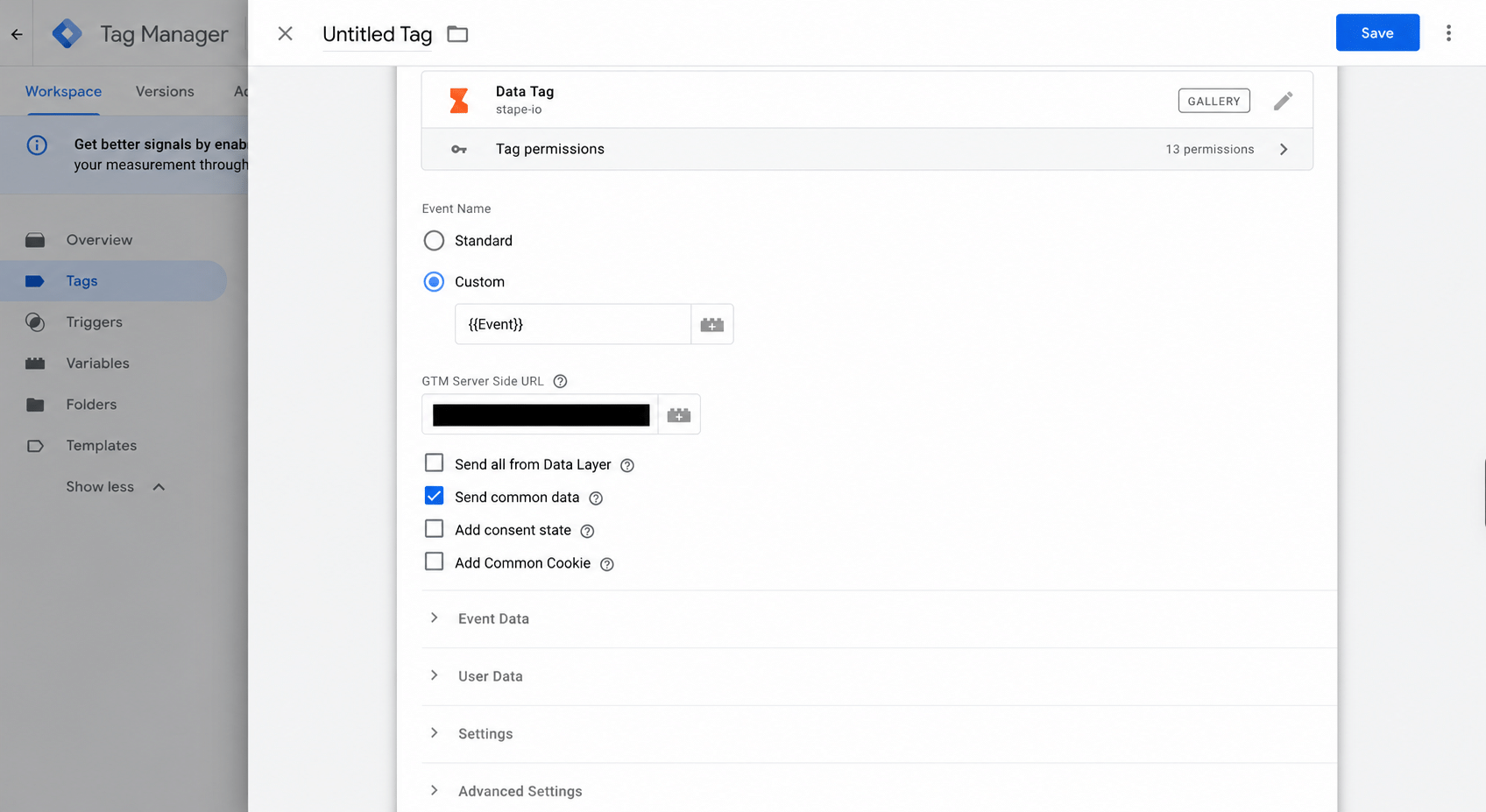
We don’t want to send hard-coded event names so we’d make it dynamic:
We are gong to use the Event variable to use the info of the incoming event name.
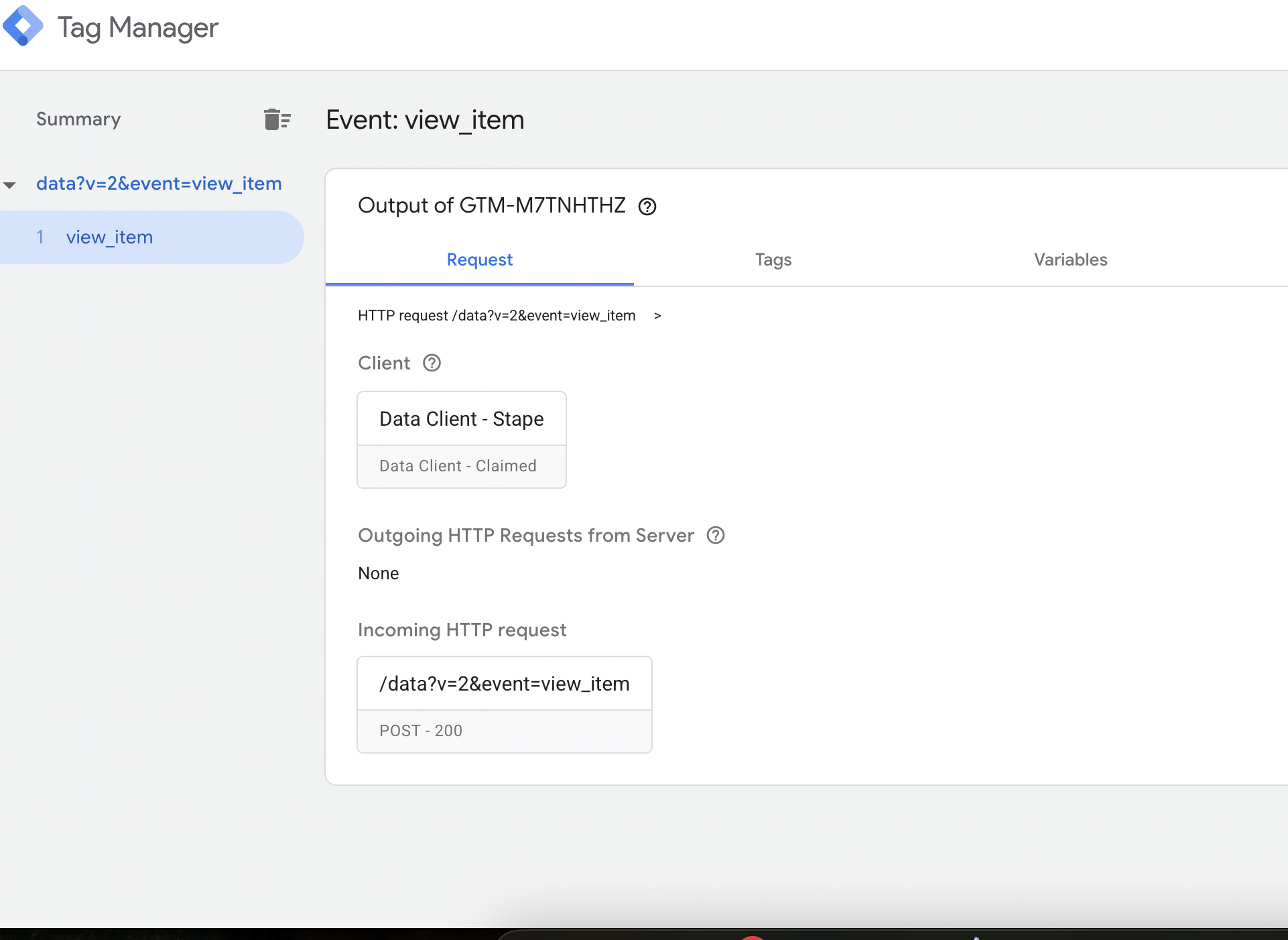
If all goes well, we’d see server GTM in action:
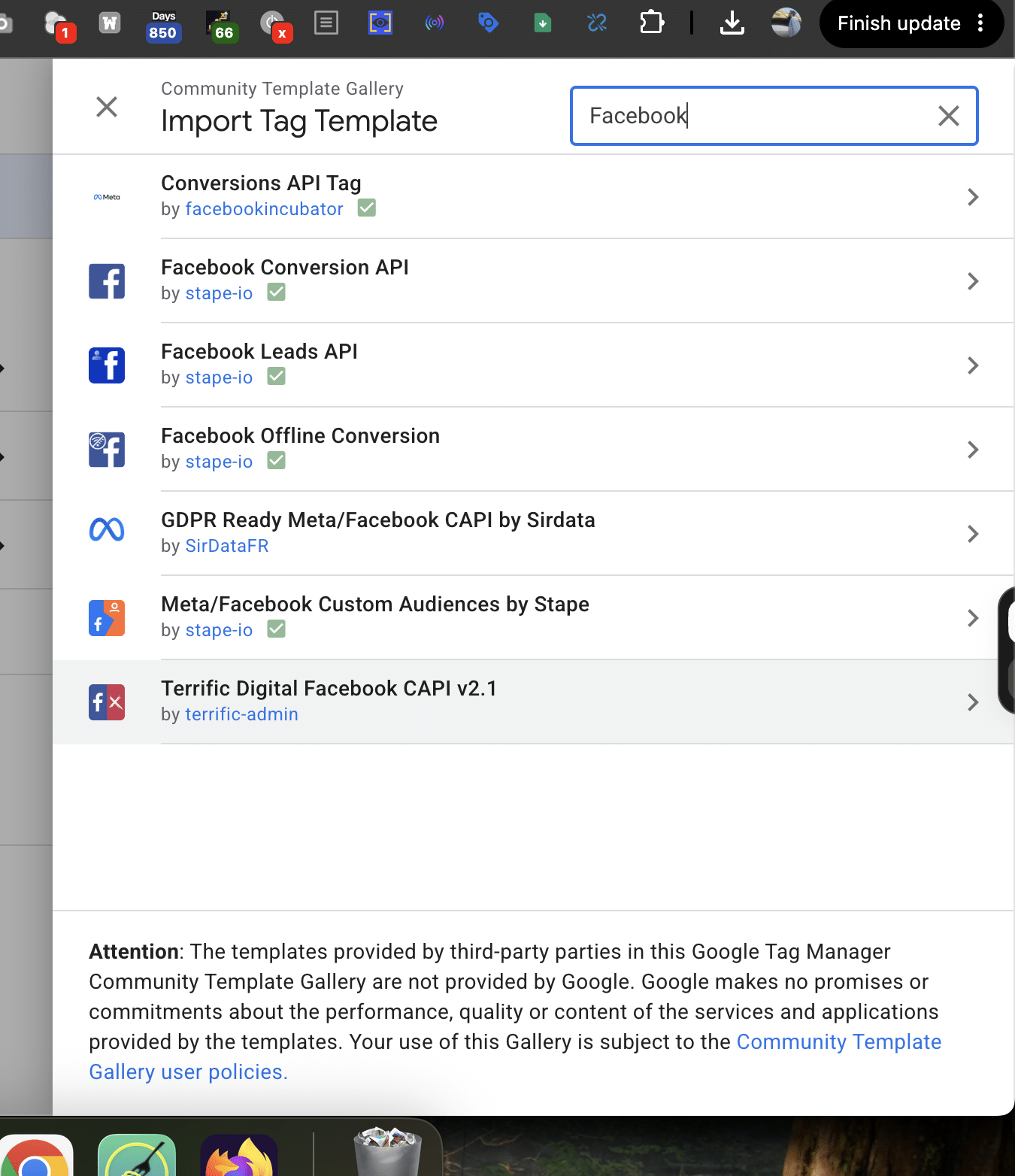
Next, we need to configure Meta CAPI. We are going to add Facebook Conversion API template by Stape.
We will be adding all required tags to interact with Meta servers.
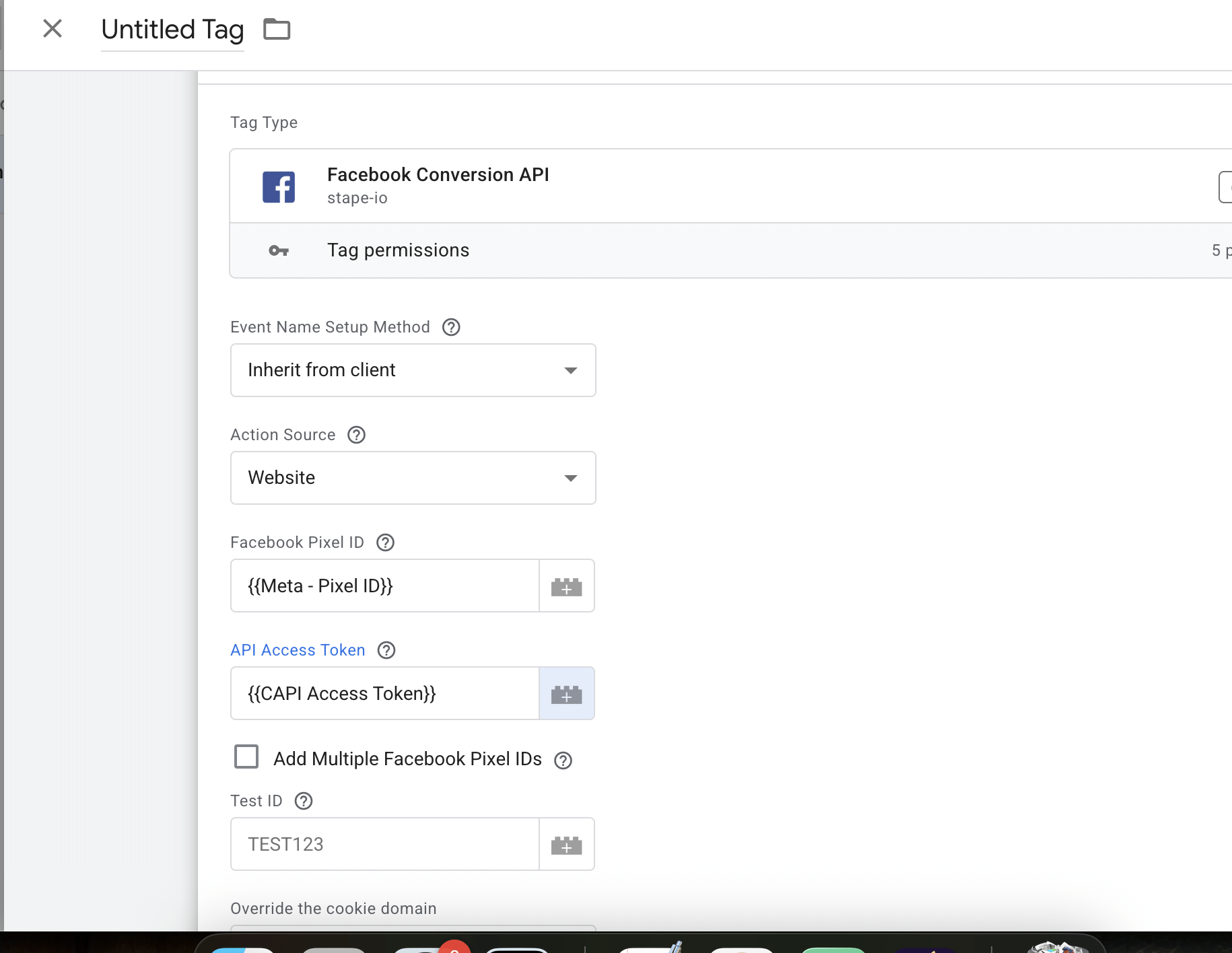
If all goes well you’d see something like:
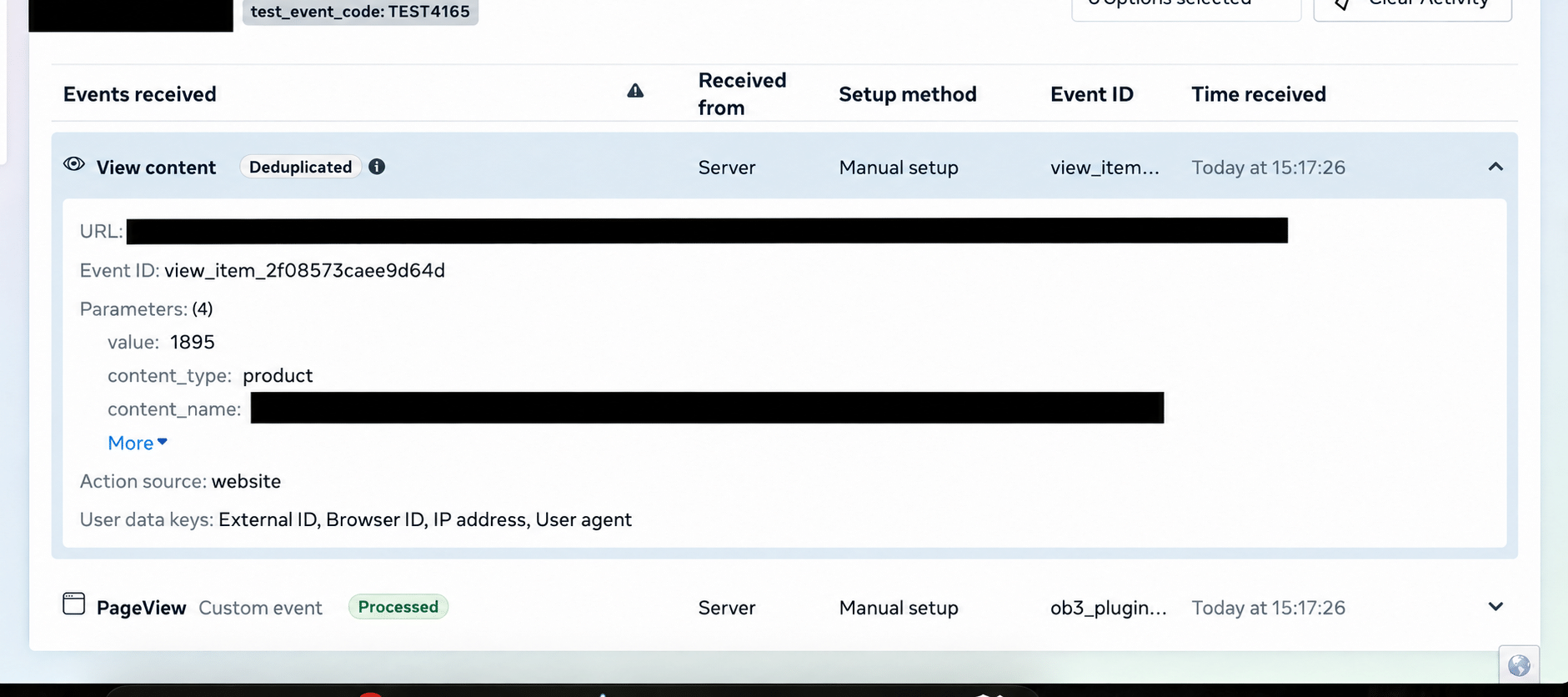
Similarly we’d be configuring other events as well.
Custom domain configuration in Cloudflare
We needed the tracking requests to be processed via the domain of the store itself so that the GTM Server Side configuration could have the same-origin endpoint and be able to create first-party cookies.
We set up a custom tagging subdomain for our Stape-hosted server-side GTM container and configured its DNS records in Cloudflare. We also deployed a Cloudflare worker under a separate path of the OpenCart store domain which then stripped the path and forwarded the request to the Stape tagging subdomain.
We made the necessary adjustments to the web GTM Data Tag and checked whether the endpoint is working correctly by sending an event through a product view page.
Conclusion
That’s how we set up browser and server-side tracking for the OpenCart store. I’ve kept this post focused on the implementation steps and left the code and configuration details for another time.
Setting up server-side tracking for OpenCart with Stape takes some care. Once the OpenCart data layer, web GTM, and server container are wired together, you can test the full flow from the storefront to Meta Events Manager.
If you run an OpenCart store and want to set up tracking or check whether your existing setup is working correctly, book a call with me.
After this project, I also released a free GTM extension for OpenCart.