
This post is part of the GenAI Series.
A few moons ago, I built a small AI tool to deal with ticket delays at my company. It wasn’t a big, fancy product. It started as a simple experiment, but it worked really well.
We were getting negative feedback from clients about tickets not being completed on time. The real challenge was figuring out the actual reason behind each delay. Was it something our team did wrong, or was the delay coming from the client’s end?
When you have a ticket with huge comment threads and internal notes, it becomes difficult to go through everything to find the real reason. It takes time that nobody really has.
What made it worse were the management meetings. I kept hearing grievances from department managers saying their teams were being blamed unfairly. And in some cases, they were right. People were doing their jobs, but the picture being painted was not accurate. Sitting in one of those meetings, I thought to myself: why not build something that can just read the ticket data and tell us exactly what happened?
How I Built It
I already had API access to Freshdesk, the ticketing system we use internally. I came up with a prompt, passed the ticket data as JSON along with it, and sent it to an AI model to see what it would produce. Honestly, I wasn’t sure how well it would work.
But it did. And better than I expected. Not only did it help us identify the reason behind a delay and whether the responsibility was on our team or the client, but it also started surfacing insights about individual employee performance across departments. That wasn’t even the intention, but there it was.
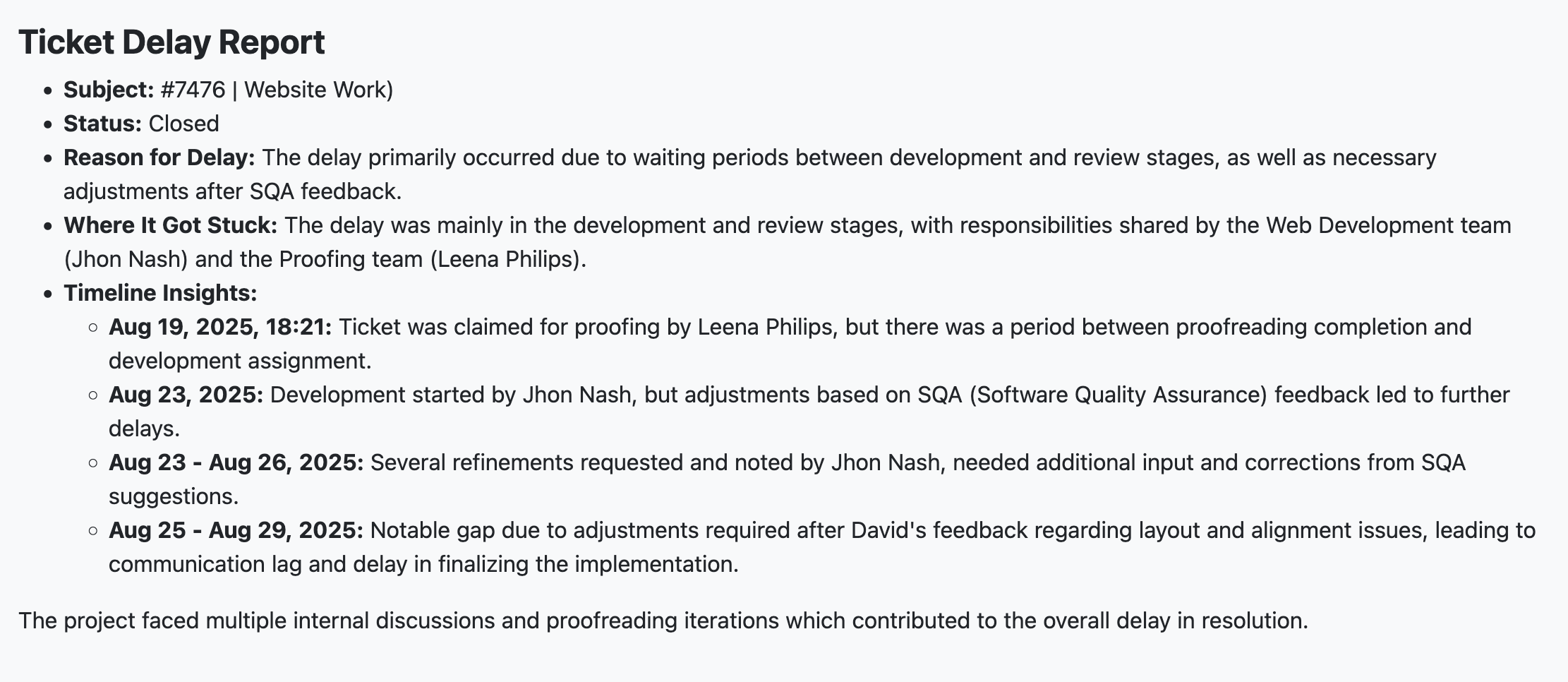
The above screenshot is the output of the tool(The original ticket number and names have been replaced).
Here is a real example from Ticket #7476, a website work task that had already been closed.
Reason for Delay: The delay primarily resulted from waiting periods between the development and review stages, as well as necessary adjustments following SQA feedback.
Where It Got Stuck: The bottleneck was shared across two people. Jhon Nash on the Web Development team and Leena Philips on the Proofing team both had responsibilities that overlapped with where things slowed down.
Timeline: On August 19th, Leena claimed the ticket for proofing, but there was a gap before development was assigned. Development started with Jhon on August 23rd, but SQA feedback triggered unexpected adjustments. Between August 23rd and 26th Jhon was going back and forth on refinements based on SQA suggestions. Then, between August 25th and 29th, David’s feedback about layout and alignment issues created another gap, causing communication lag and further delaying the final implementation.
Then AI wrapped it up with: “The project faced multiple internal discussions and proofreading iterations, which contributed to the overall delay in resolution.”
Before this tool, reaching that conclusion meant reading every single message in the thread and piecing the timeline together yourself. Now it happens in seconds, with the responsible parties clearly identified and no guesswork involved.
Watch the Full Demo
In this 7-minute demo, I walk through a real ticket analysis showing exactly how the AI identifies delays and bottlenecks.
Conclusion
This tool delivered more than we expected. It made internal conversations clearer, reduced unfair blame, and gave managers concrete insights to act on.
It is not limited to Freshdesk. The same approach works with Zendesk, ServiceNow, HubSpot, Jira, Salesforce Service Cloud, or any custom system. If you can pull ticket data through an API, you can send it to a model for analysis. You can also tailor the prompt to handle different inputs and produce the exact type of output you need.
This was my first attempt at using AI inside a ticketing workflow, and it opened my eyes to how much more is possible.
If you are dealing with ticket delays and want to explore whether this could work in your setup, feel free to leave a comment or schedule a quick call here: