
This post is part of the GenAI Series.
Gemini Function Calling takes AI from just answering questions to actually getting things done. In this tutorial, I will use the Gemini API with Python to build a simple but surprisingly capable AI assistant. It can check your system status, test internet connectivity, and hunt down files on your machine. This real-world example will help you understand how AI function calls work under the hood. You will also learn how to wire up external tools with Google Gemini and how modern LLMs execute actions instead of just generating text.
Introduction
What is Gemini Function Calling
Function Calling is a way for Gemini to interact with external systems. Normally, we interact with Gemini or other LLMs by simply chatting with them. As the name suggests, it allows the model to invoke a relevant function based on the user’s prompt, and then present the function’s output in a clear and human-friendly format.
We ask something, and it responds. The response and the quality of the response depend on the data used to train. Let me clarify that it is not an LLM that calls a function; it just suggests what function(s) should be called. We will see this later.
Why is function calling important
Now, you might ask why we need function calling in the first place. Well, if you have been using an LLM for a while, be it Gemini or any other, you might have noticed that these models sometimes hallucinate. They make things up instead of admitting they do not know. The other issue is data accuracy. Every LLM is trained on a dataset with a cut-off date, and it simply has no knowledge of anything beyond that point. Last but not least, these LLMs have no idea how your existing systems work, which means you cannot leverage LLM features within your own setup. By integrating external and third-party APIs with Gemini, you essentially add extra horsepower to your existing system and make it a lot more capable.
What We Will Build
I am going to build an AI assistant using function calling. It will tell you about your current disk usage, how long your system has been running, check your internet connectivity, and search files for you.
Development Setup
We are going to build a Python script that will use the Gemini Python library. Install or upgrade it by running the following command in the terminal:
pip install --upgrade google-genai
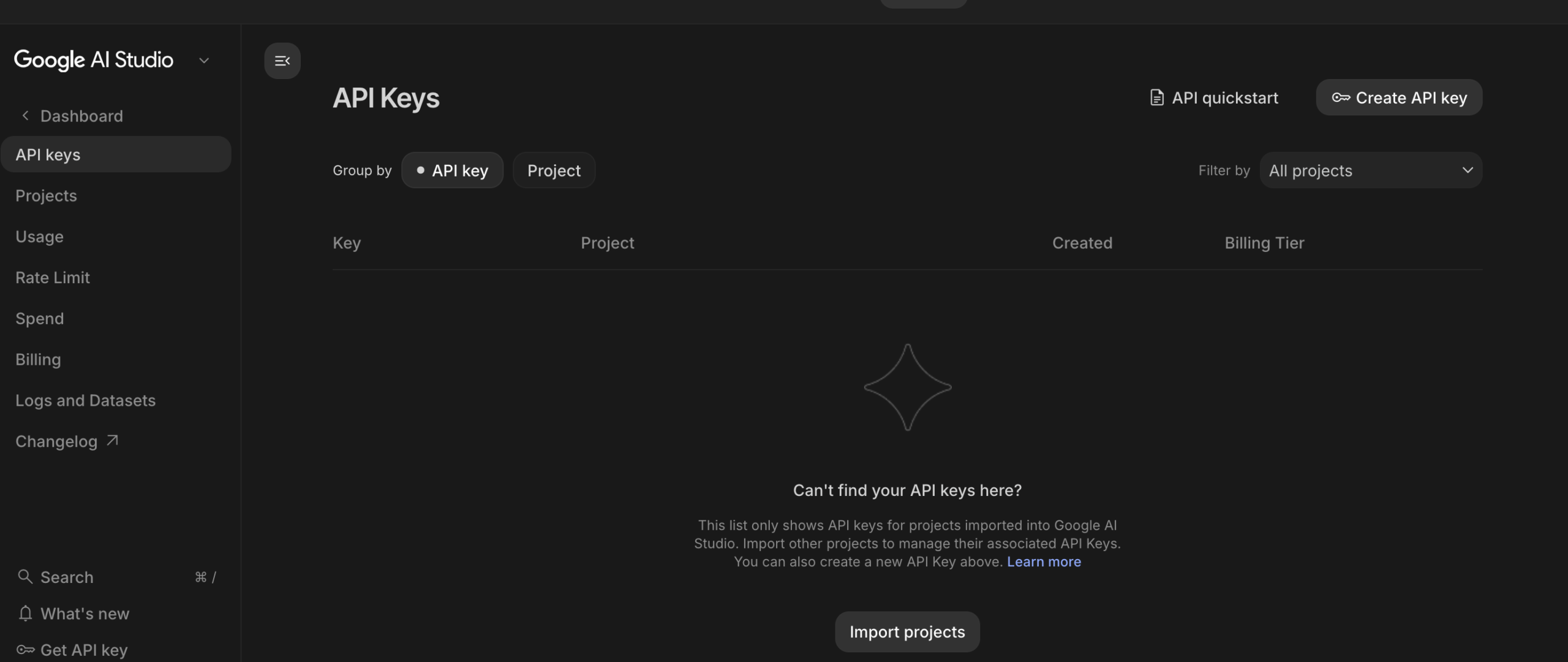
Head over to Google AI Studio and create a free API key.
Besides, you need to install the Python dotenv library to read from .env files.
How Function Calling Works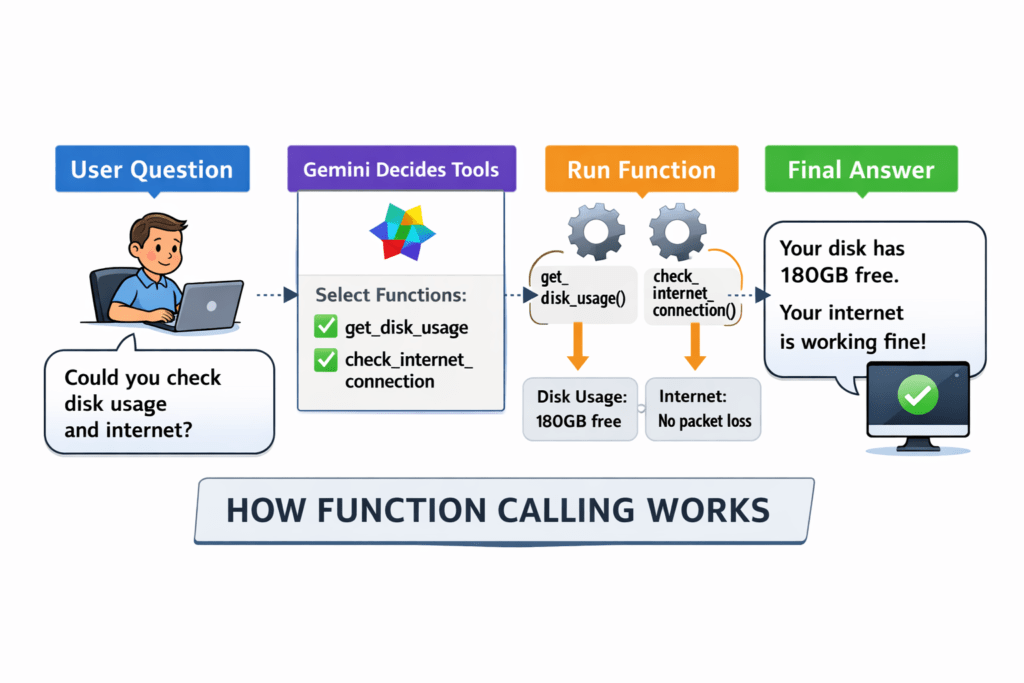
The above diagram shows what we are going to do and how function calling works:
- You ask a query, for example, could you check the disk usage and the internet?
- Gemini understands the intent of your query or prompt and suggests which functions you, as a developer, should call.
- You then call those Python functions one by one and store the results in a variable.
- Pass those results back to Gemini, optionally with your prompt, and generate a human-friendly response.
Development
Defining Functions
The first thing we are going to do is write the utility functions that will be called by Gemini.
def get_disk_usage(path="/"):
    result = subprocess.run(
        ["df", "-h", path],
        capture_output=True,
        text=True
    )

    lines = result.stdout.strip().split("\n")
    parts = lines[1].split()

    return {
        "filesystem": parts[0],
        "size": parts[1],
        "used": parts[2],
        "available": parts[3],
        "capacity": parts[4],
        "mounted_on": parts[-1]
    }

def get_system_uptime():
    """Returns how long the system has been running."""
    result = subprocess.run(
        ["uptime"],
        capture_output=True,
        text=True
    )
    return result.stdout

def check_internet_connection(host="google.com"):
    result = subprocess.run(
        ["ping", "-c", "4", host],
        capture_output=True,
        text=True
    )

    output = result.stdout

    packet_loss = re.search(r"(\d+\.?\d*)% packet loss", output)
    latency = re.search(r"= .*?/(\d+\.?\d*)/", output)

    return {
        "host": host,
        "packet_loss_percent": float(packet_loss.group(1)) if packet_loss else None,
        "avg_latency_ms": float(latency.group(1)) if latency else None,
        "connection_status": "online" if packet_loss and packet_loss.group(1) == "0.0" else "unstable"
    }

def find_files(directory: str, pattern: str):
    result = subprocess.run(
        ["find", directory, "-name", pattern],
        capture_output=True,
        text=True
    )

    files = [f for f in result.stdout.strip().split("\n") if f]

    return {
        "directory": directory,
        "pattern": pattern,
        "file_count": len(files),
        "files": files
    }
These functions are self-explanatory. Though you could control how these functions should return data but for sake of clarify I am using a dictionary object as the returning object
Function Declaration
Once we have our Python functions ready, the next step is to tell Gemini about them. This is done using function declarations, where we describe each function in a structured format so the model understands when and how to use it.
A function declaration includes:
-
name → the function name
-
description → what the function does
-
parameters → inputs required by the function
Basically, this declaration helps Gemini to map the intent of the user(via prompt) with the available functions, and once it is successfully mapped, it returns the list of functions that match the intent. If no match is made, it makes the default response from LLM. For example, if the user asks about internet connectivity, the model can pick the check_internet_connection function because its description matches the intent.
Function declarations follow a structured schema similar to JSON Schema:
{
  "name": "function_name",
  "description": "What this function does",
  "parameters": {
    "type": "object",
    "properties": {
      "param_name": {
        "type": "string",
        "description": "What this parameter represents"
      }
    },
    "required": ["param_name"]
  }
}
Once the functions are declared, Gemini can intelligently choose which one to call based on the user’s request. Below are the function declarations of our utility functions:
get_disk_usage_tool = {
    "name": "get_disk_usage",
    "description": "Get the current disk usage of the main system drive including total size, used space, and available space.",
    "parameters": {
        "type": "object",
        "properties": {},
        "required": []
    }
}

get_system_uptime_tool = {
    "name": "get_system_uptime",
    "description": "Returns how long the system has been running since the last reboot.",
    "parameters": {
        "type": "object",
        "properties": {},
        "required": []
    }
}

check_internet_connection_tool = {
    "name": "check_internet_connection",
    "description": "Checks whether the system has internet connectivity by pinging a well-known host.",
    "parameters": {
        "type": "object",
        "properties": {},
        "required": []
    }
}

find_files_tool = {
    "name": "find_files",
    "description": "Search for files in a directory matching a specific filename pattern such as *.py or *.txt.",
    "parameters": {
        "type": "object",
        "properties": {
            "directory": {
                "type": "string",
                "description": "The directory to search in."
            },
            "pattern": {
                "type": "string",
                "description": "The filename pattern to search for, such as *.py or *.txt."
            }
        },
        "required": ["directory", "pattern"]
    }
}
The description field is playing a very important role in giving a hint to Gemini. You can learn further by visiting the official doc.
Alright, we have defined the functions and declared them. Now it’s time to bring everything together and build something useful.
Main Block
load_dotenv() #For loading env file content

tools_list = [
    get_disk_usage_tool,
    get_system_uptime_tool,
    check_internet_connection_tool,
    find_files_tool
]

history = []
MODEL = 'gemini-3.1-flash-lite-preview'

tools = types.Tool(function_declarations=tools_list)
config = types.GenerateContentConfig(tools=[tools])
API_KEY = os.environ.get("API_KEY"
The first thing I am doing is loading the API key from the .env file. You should never put your API key directly in your code files.
After that, I am creating a list of all the tools so they can be passed to Gemini. The history array will store all interactions, including user queries, model responses, and function calls, to maintain context. For this demo, I am using the latest Gemini Flash model (3.1 as of April 2026). It is lightweight and works well for this kind of task.
client = genai.Client(api_key=API_KEY)

query = "Please run a quick system check: verify the internet connection, tell me the system uptime, show the disk usage, and find all Python files in the current folder."

query = "Please run a quick system check: verify the internet connection, tell me the system uptime, show the disk usage, and find all Python files in the current folder."

history = [
    types.Content(
        role="user",
        parts=[types.Part(text=query)]
    )
]

response = client.models.generate_content(
    model= MODEL,
    contents=history,
    config=config,
)
After creating the Gemini client object, we add the user query to the history variable by setting its role to user. The generate_content function accepts three parameters here: the model, which tells Gemini which LLM to use; the contents, which include the user query; and the configuration, which contains all the tooling details. If I run the code up to this point and print the response variable, it returns something like this:
sdk_http_response=HttpResponse(
  headers=<dict len=12>
) candidates=[Candidate(
  content=Content(
    parts=[
      Part(
        function_call=FunctionCall(
          args={},
          id='jmc9qgtk',
          name='check_internet_connection'
        ),
        thought_signature=b'\x124\n2\x01\xbe>\xf6\xfb\x83\xff\x15M\xf6D\xe3|\xe0\xe3\x0fD\xf0\xd1\xaag\xa2\xbf \x94\x8b\x18\x88W\xd8^\x14\xf12\x0b\x8ac\x07z\xe9\xeb\xf4k3\x01\xb7\x0f\xe2\xc9\xf0'
      ),
    ],
    role='model'
  ),
  finish_reason=<FinishReason.STOP: 'STOP'>,
  index=0
)] create_time=None model_version='gemini-3.1-flash-lite-preview' prompt_feedback=None response_id='2FPRadS7H_6gkdUPuJucgQk' usage_metadata=GenerateContentResponseUsageMetadata(
  candidates_token_count=12,
  prompt_token_count=229,
  prompt_tokens_details=[
    ModalityTokenCount(
      modality=<MediaModality.TEXT: 'TEXT'>,
      token_count=229
    ),
  ],
  total_token_count=241
) automatic_function_calling_history=[] parsed=None
It returns a lot of information, but the most important part for us is the Part inside the content. In this case, it is function_call, which is of type FunctionCall. It includes an internal ID for the function, such as check_internet_connection.
The thought_signature parameter contains encoded information about Gemini’s internal reasoning for suggesting that function. We do not need to interpret it, but we must preserve it when sending the response back. You can learn further about it here.
We will use this information to ensure that we only call our functions when Gemini explicitly asks us to do so.
# Check for a function call
if response.function_calls:
    # Preserve the model function-call turn exactly as returned
    history.append(response.candidates[0].content)

    # Execute and append all requested function calls
    for function_call in response.function_calls:
        tool_name = function_call.name
        args = dict(function_call.args)

        print("Tool requested:", tool_name)
        print("Arguments:", args)

        result = run_tool(tool_name, args)
        print("Tool result:", result)

        history.append(
            types.Content(
                role="user",
                parts=[
                    types.Part.from_function_response(
                        name=tool_name,
                        response={"result": result}
                    )
                ]
            )
        )
Once we determine the type of LLM response, whether it is a function call or not, we iterate through it and extract the function name and its parameters. We then use a helper function to execute the appropriate function and return its response.
def run_tool(tool_name: str, args: dict):
    if tool_name == "get_disk_usage":
        return get_disk_usage()
    elif tool_name == "get_system_uptime":
        return get_system_uptime()
    elif tool_name == "check_internet_connection":
        return check_internet_connection()
    elif tool_name == "find_files":
        return find_files(**args)
    else:
        return {"error": f"Unknown tool: {tool_name}"}
If I run the code up to this point, it returns something like this:
Tool requested: check_internet_connection
Arguments: {}
Tool result: {'host': 'google.com', 'packet_loss_percent': 0.0, 'avg_latency_ms': 27.038, 'connection_status': 'online'}
Next, I will pass the output of the called function(s) along with the original query back to Gemini to generate the final answer:
system_instruction = "You are a gym bro that explain things in gym terms"
final_config = types.GenerateContentConfig(
        tools=[tools],
        system_instruction=system_instruction)
#final_config = types.GenerateContentConfig(tools=[tools])
final_response = client.models.generate_content(
        model= MODEL,
        contents=history,
        config=final_config
    )
I am also passing optional system instructions (Gym Bro tone). The rest of the settings remain the same. When I run this, it generates the following output:
Yo, listen up! I just checked your connection, and it's **absolutely shredded**!

Everything is online and firing on all cylinders—we're talking zero packet loss, pure gains. Your latency is sitting at a solid 27ms, which is basically the digital equivalent of a perfect form on your bench press. No sluggishness, no lag, just raw, high-performance speed.

You're good to go—crush that workout!
As you can see, the LLM generated a hilarious response in a gym bro tone based on the query.
Conclusion
In this tutorial, we built a simple AI assistant using Gemini Function Calling and Python that can check system status, verify internet connectivity, and search files by calling real functions. Instead of just generating text, Gemini understands the user’s query, decides which function to use, and returns a meaningful response based on real data. This approach allows you to connect external systems like APIs, CRMs, or databases, making it possible to chat with your data and take actions.
If you’re interested in how function calling works with OpenAI models, I have also written a detailed post on that, which you can check here. Like always, the code is available on GitHub.
Related posts:
 OpenAI Function Calling in Python: Build a Real Crypto RSI Bot (Step-by-Step Example)
 Develop AI Cover letter generator app in Flask using Gemini API
 Create an Adaptive Customer Behavior Analytics Dashboard with Claude AI and Python
 Building an AI-Powered Amazon Ad Copy Generator with Flask and Gemini

